How to add staff to your game library
Let other people lend and return games from a Meeplay's game library on their phone, without making them administrators of your organization.
12 steps with screenshots of the app
If other people help you run an event's game library, give them permission to lend and return games on their phone, without making them administrators of your organization. The permission applies to that Meeplay's game library: when they open it, they'll see the staff panel. For someone to run your club's game library, for now you need to give them access to manage the organization: How to give other people access to manage your organization.
- Have the Meeplay app installed and be logged in to your account.
- Manage an organization on Meeplay. If you don't have one yet, follow the How to create your organization guide first.
- Have a published game library in a Meeplay. If you don't have one yet, follow How to add a game library to a Meeplay.
- The other person needs a Meeplay account.
In each screenshot, what you need to tap is outlined in yellow and pointed out with an arrow.
- Step 1 of 12
Switch to your organization's profile
On the home screen, tap the two arrows button to the right of your name.
- Step 2 of 12
Choose your organization
Under Select an organizer, tap your organization's name.
- Step 3 of 12
Open the agenda
Tap the calendar on the bottom bar.
- Step 4 of 12
Open the Meeplay
In list view, tap the Meeplay that has the game library.
- Step 5 of 12
Open the menu
On the Meeplay page, tap the three dots at the top right.
- Step 6 of 12
Open permissions
Tap Manage permissions.
- Step 7 of 12
Add a permission
Tap the + button at the bottom right.
- Step 8 of 12
Find the person
Tap Name or nick and type their name or nick.
- Step 9 of 12
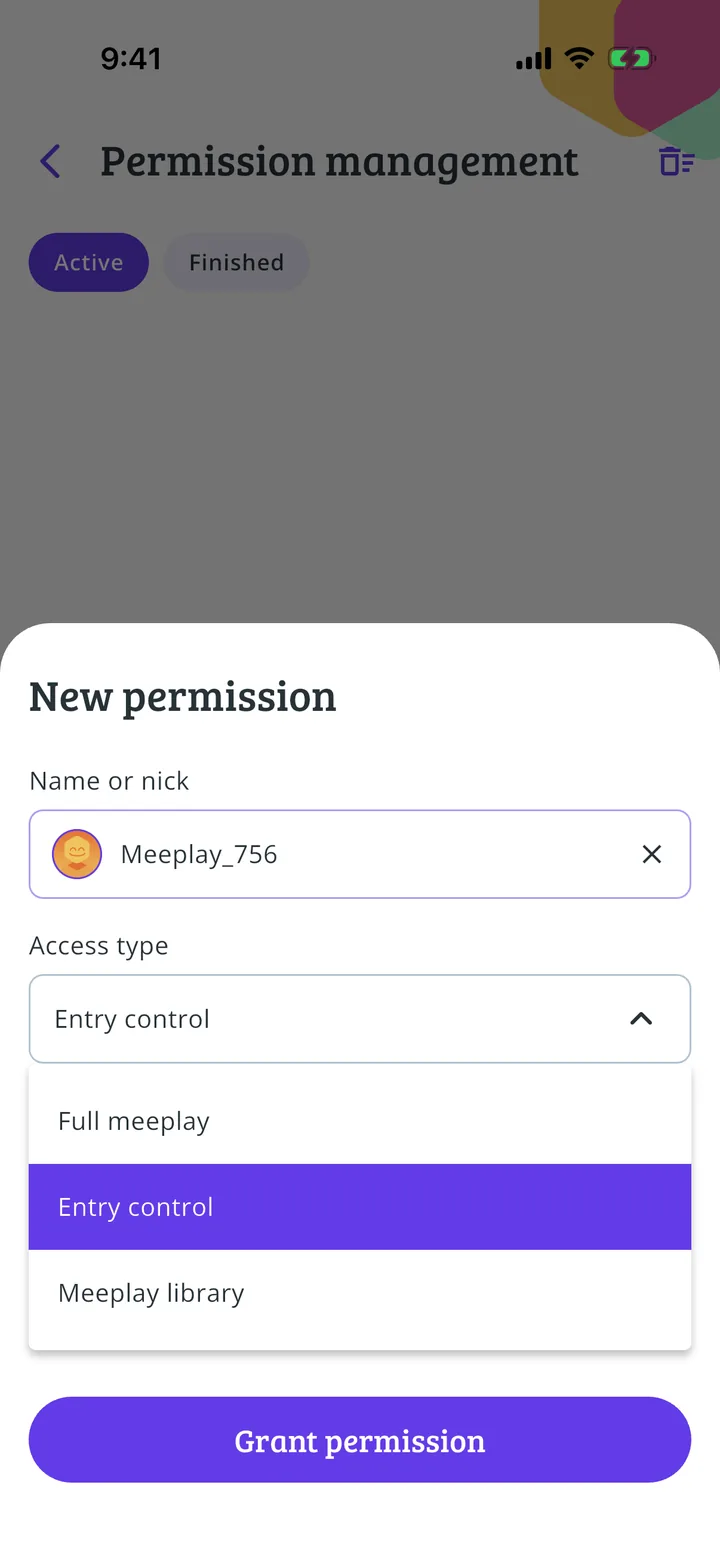
Choose the access type
Tap them in the list and open Access type.
- Step 10 of 12
Choose the game library
Tap Meeplay library. With it they can lend, return and manage the catalog of this Meeplay's game library, and nothing else.
- Step 11 of 12
Grant the permission
If you like, set an expiry date, such as the last day of the event, and a label to group your team's permissions. Tap Grant permission.
- Step 12 of 12
They're now part of the staff!
The permission appears under Active. When that person opens the Meeplay and taps Game library, they'll get the staff panel. From here you can remove the permission when the event is over.
All done!
You have finished the guide. If something did not go as in the screenshots, tell us which step you got stuck on and we will help you.