Before you start
20 steps with screenshots of the app
An organization is the profile of your shop, club, association, publisher or project on Meeplay. It gives you a professional profile with stats, puts you in the organizer search, and lets you create Meeplays and publish posts under its name. You set it up from the app in a few minutes.
- Have the Meeplay app installed and be logged in to your account.
- Have your organization's logo or a photo ready: you cannot finish without it.
In each screenshot, what you need to tap is outlined in yellow and pointed out with an arrow.
Step 1 of 20
Go to your profile
On the home screen, tap your name or picture in the top left corner.
Step 2 of 20
Open settings
On your profile, tap the gear button to the right of Badges.
Step 3 of 20
Tap "Create your organization"
In Settings, under My Account & Activity, tap Create your organization.
Step 4 of 20
Get started
This screen sums up what an organization gives you. Tap Start now at the bottom.
Step 5 of 20
Enter the name and choose the type
Tap the Organization name field and enter your organization's name. Right below, under Type, tap the one that fits: Shop, Organization, Association, Editorial, Designer, Creator or Others. Both are required.
Step 6 of 20
Add contact details and a description
Scroll down and fill in Contact email, which is required. Contact phone, Website, Address and Description are optional, but they help people find you; tap the address field to search for it. When you are done, tap Next.
Step 7 of 20
Describe what you offer
Tap the box and describe the services you offer, your areas of expertise or the kind of events you run. Then tap Next.
Step 8 of 20
Choose a social network
Tap the icon of the network you want to add, for example Instagram.
Step 9 of 20
Enter your username
Enter your username without the @ and tap Save.
Step 10 of 20
Repeat for each network
The network you added now shows a green tick. Repeat with any others you have and tap Next.
Step 11 of 20
Turn on a day and tap "Start"
In Schedule, turn on the switch for the first day you open and tap Start next to it.
Step 12 of 20
Choose the opening time
Scroll the wheels to the opening time. If you open at the same time on other days, tap their initials under Copy schedule for the days to copy it to all of them. Tap Accept.
Step 13 of 20
Choose the closing time
Tap End and do the same for the closing time: wheels, days and Accept.
Step 14 of 20
Check your opening hours
Check that your opening hours are right. Each day's + button adds a second time slot, for example one in the morning and one in the afternoon. Tap Next.
Step 15 of 20
Add a photo or logo
Tap the photo circle. It is the last step and it is required.
Step 16 of 20
Choose where it comes from
Tap Choose image to use a picture already on your phone, or Take photo to take one now.
Step 17 of 20
Select the picture
Tap the picture you want and confirm it with the button in the bottom right corner.
Step 18 of 20
Create the organization
Check that the picture shows in the circle and tap Create Organizer.
Step 19 of 20
Done!
You will see the Organization created message. Tap Done.
Step 20 of 20
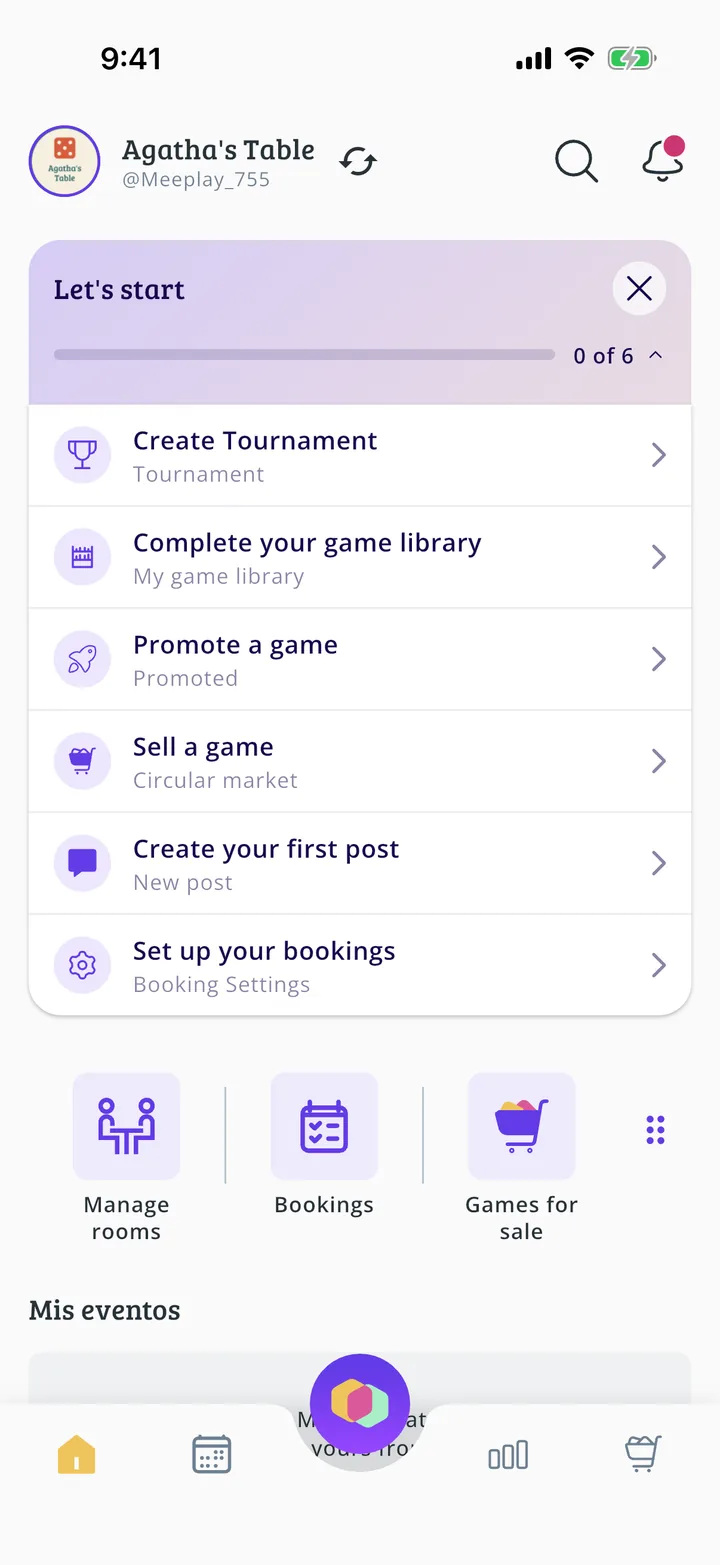
You are on your dashboard
This is your organization's dashboard. The list at the top walks you through the first steps: create a tournament, complete your game library, promote a game, sell a game on the circular market, publish your first post and set up bookings.