How to record a loan in your game library
Record in the app that someone is taking a game from the library: who, for how long and when it's due. Without a QR code, from the staff panel.
12 steps with screenshots of the app
When someone takes a game from the library, record it as a loan: that way you know who has it and when it's due back, and the app reminds them before it's due. This guide does it by hand, without a QR code. It works the same for a Meeplay's game library and for your club's: you open your club's from its dashboard, with the Library icon.
- Have the Meeplay app installed and be logged in to your account.
- Manage an organization on Meeplay. If you don't have one yet, follow the How to create your organization guide first.
- Have a published game library in a Meeplay. If you don't have one yet, follow How to add a game library to a Meeplay.
In each screenshot, what you need to tap is outlined in yellow and pointed out with an arrow.
- Step 1 of 12
Switch to your organization's profile
On the home screen, tap the two arrows button to the right of your name.
- Step 2 of 12
Choose your organization
Under Select an organizer, tap your organization's name.
- Step 3 of 12
Open the agenda
Tap the calendar on the bottom bar.
- Step 4 of 12
Open the Meeplay
In list view, tap the Meeplay that has the game library.
- Step 5 of 12
Open the game library
On the Meeplay page, tap Game library.
- Step 6 of 12
Open manual loan
If a QR code is mandatory in the rules, you'll see Scan QR at the top: use it to scan the code the person generates on their phone when asking for the game (this is how they ask). To record it yourself, without a QR code, tap Manual loan.
- Step 7 of 12
Choose the game
Search for the game or tap it in the list. On the right you see how many copies are free.
- Step 8 of 12
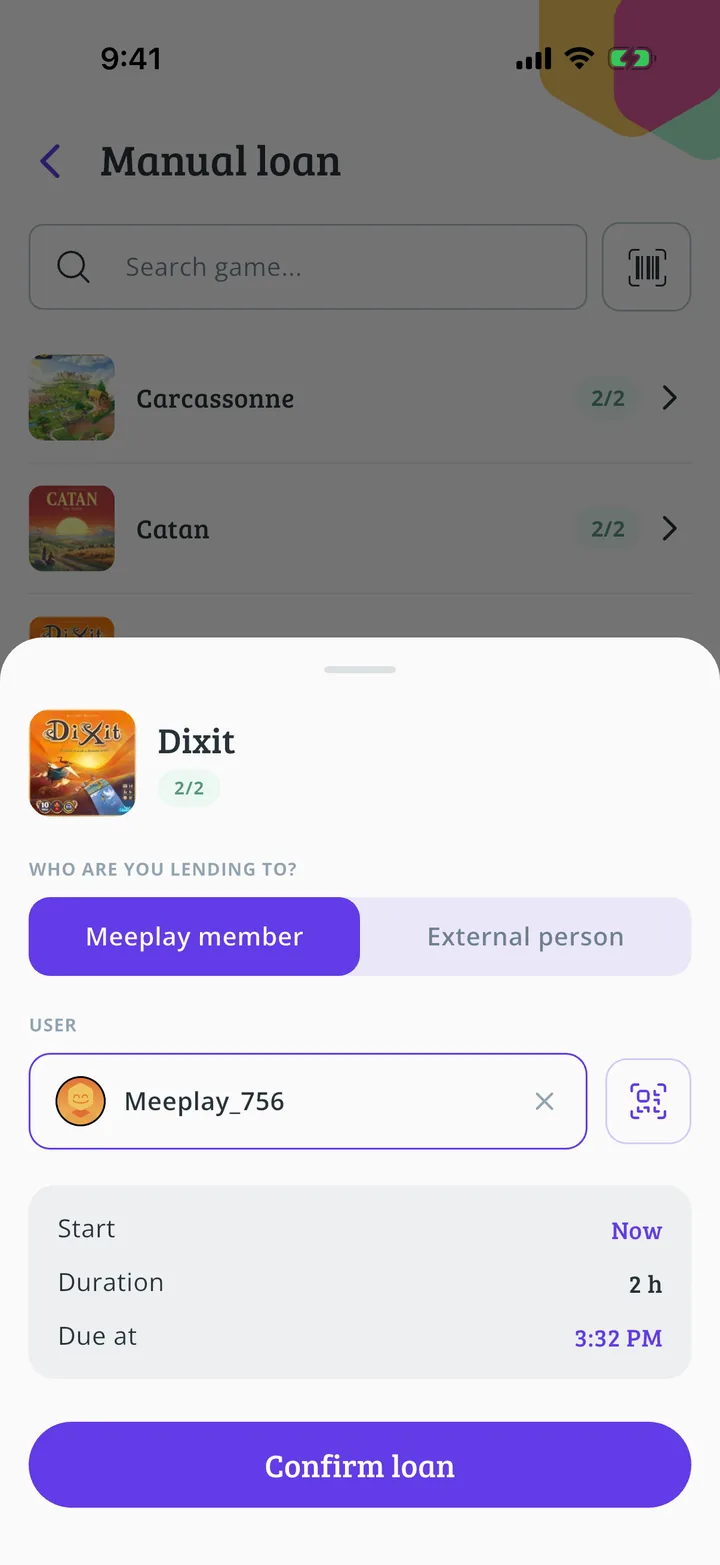
Say who you're lending it to
If they have a Meeplay account, leave Meeplay member; if not, tap External person and type their name. To find the person, tap Select or scan the QR; the button next to it scans their QR code.
- Step 9 of 12
Find the person
Type their name or nick and tap them in the list. People you've played with most appear at the top.
- Step 10 of 12
Confirm the loan
Check the duration and when it's due: they come from the library rules. Tap Confirm loan.
- Step 11 of 12
Loan recorded
You'll see Loan confirmed. Tap Accept.
- Step 12 of 12
Game lent!
The game now counts under Active and appears in Upcoming returns, with the time left. When it's returned, follow How to record a game return.
All done!
You have finished the guide. If something did not go as in the screenshots, tell us which step you got stuck on and we will help you.