Borrowing a game takes two steps: you generate a QR code in the app and the library staff scan it when they hand you the game. This guide goes as far as the code and shows you where to see your loans.
Have the Meeplay app installed and be logged in to your account.
In each screenshot, what you need to tap is outlined in yellow and pointed out with an arrow.
Step 1 of 5
Open the library
On the Meeplay page, tap Game library. It only appears if the Meeplay has a published library.
Step 2 of 5
Choose a game
Tap the game you want. On the right you can see how many copies are free.
Step 3 of 5
Request it
Check the terms and tap Borrow.
Step 4 of 5
Show your code
Show this code to the library staff so they can scan it. It expires after a few minutes; if time runs out, tap Generate new code.
Step 5 of 5
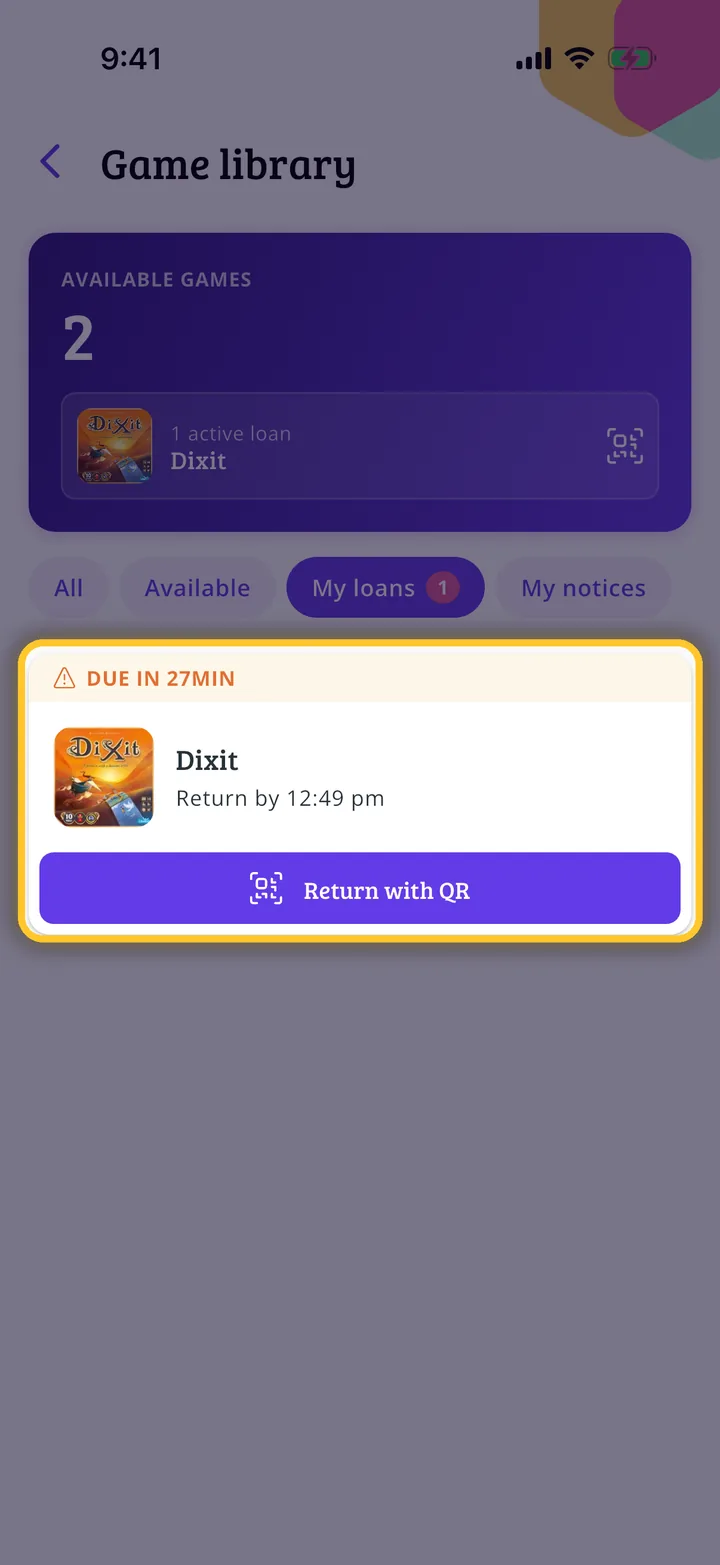
Your loans
Once you've been given the game, it appears under My loans, with the time you must return it by. To return it, tap Return with QR and show the code to the staff.
Guide completed
All done!
You have finished the guide. If something did not go as in the screenshots, tell us which step you got stuck on and we will help you.