How to turn on loans in a game library
Make every game in the library available for loan at once and check the rules: how many games per person, how long a loan lasts and whether a QR code is needed.
11 steps with screenshots of the app
If your game library was browse-only, or you loaded the games without marking them for loan, you can turn on lending for all of them at once. Then it's worth checking the rules before anyone takes a game home. It works the same for your club's game library and for a Meeplay's: you open a Meeplay's from its page, with the Game library button.
- Have the Meeplay app installed and be logged in to your account.
- Manage an organization on Meeplay. If you don't have one yet, follow the How to create your organization guide first.
- Have a game library with games. If you don't have one yet, follow How to load your club's game library one game at a time.
In each screenshot, what you need to tap is outlined in yellow and pointed out with an arrow.
- Step 1 of 11
Switch to your club's profile
On the home screen, tap the two arrows button to the right of your name.
- Step 2 of 11
Choose your club
Under Select an organizer, tap your club's name.
- Step 3 of 11
Open the game library
On your club's dashboard, tap the Library icon, the one with the shelf.
- Step 4 of 11
Open the catalog
The game library panel opens. Tap Catalog.
- Step 5 of 11
Select games
Games that aren't lent show Not lendable. Tap Select.
- Step 6 of 11
Select them all
Tap Select all. If you only want to lend some games, tick them one by one.
- Step 7 of 11
Open bulk actions
Tap Bulk actions.
- Step 8 of 11
Turn on lending
Under Available for loan, tap Mark. Below you'll see how many games change. Tap Apply.
- Step 9 of 11
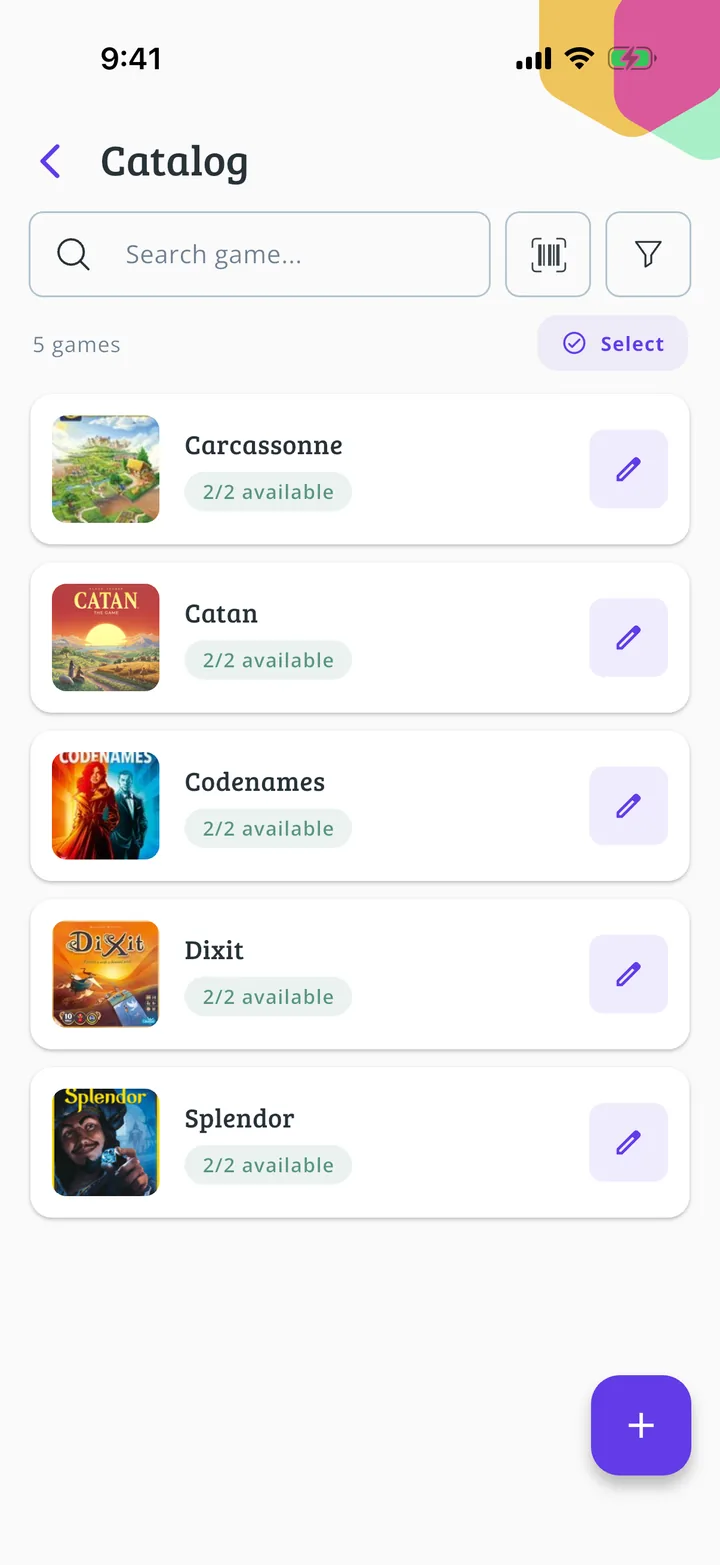
Games available for loan
Each game now shows how many copies are free to lend. Go back to check the rules.
- Step 10 of 11
Open the rules
Tap Rules.
- Step 11 of 11
Check the rules
Here you decide how many games each person can have at once, how long a loan lasts and whether a QR code is needed to take or return a game. If you change anything, scroll to the bottom and tap Save rules. We explain it in How to set the maximum number of games per person and How to set the loan duration.
All done!
You have finished the guide. If something did not go as in the screenshots, tell us which step you got stuck on and we will help you.