The game library is your club's catalogue of games on Meeplay: people can see what you have and, if you turn it on, borrow them. This guide creates it from scratch and adds the games by searching for them one by one. If you have a lot of games, also check the guide to load it with an Excel template.
Have the Meeplay app installed and be logged in to your account.
Manage an organization on Meeplay of the association, shop, organization or others type. If you don't have one yet, follow the "How to create your organization" guide first.
In each screenshot, what you need to tap is outlined in yellow and pointed out with an arrow.
Step 1 of 12
Switch to your club's profile
On the home screen, tap the two arrows button to the right of your name.
Step 2 of 12
Choose your club
Under Select an organizer, tap your club's name.
Step 3 of 12
Open the game library
You are now on your club's dashboard. Tap the Library icon, the one with the shelf. You can also get there from "Complete your game library" in the first steps list.
Step 4 of 12
Choose to add games one by one
The first time, Game library opens. At the top you have the lending policy, which you can adjust later. To add games by searching for them, tap Select Library.
Step 5 of 12
Search for a game
Tap Search game... and type the game's name.
Step 6 of 12
Add it with the +
In the results, tap the + button of the game you own.
Step 7 of 12
Set how many copies you have
Set Total copies and Lendable copies with the − and + buttons. If you like, fill in the Section and Shelf where you keep it, so it is quick to find.
Step 8 of 12
Save the game
Scroll to the bottom of the sheet and tap Save changes.
Step 9 of 12
Repeat with all your games
Search for and add the rest of your games the same way. The Games in library tab shows the ones you have added. When you are done, tap Save.
Step 10 of 12
Publish the library
Back on the settings screen, tap Publish. If you would rather review it first, tap Save as draft and publish it later.
Step 11 of 12
Your library is now published
The library dashboard opens, where you will manage loans and returns. Tap Catalog to see the games.
Step 12 of 12
Done!
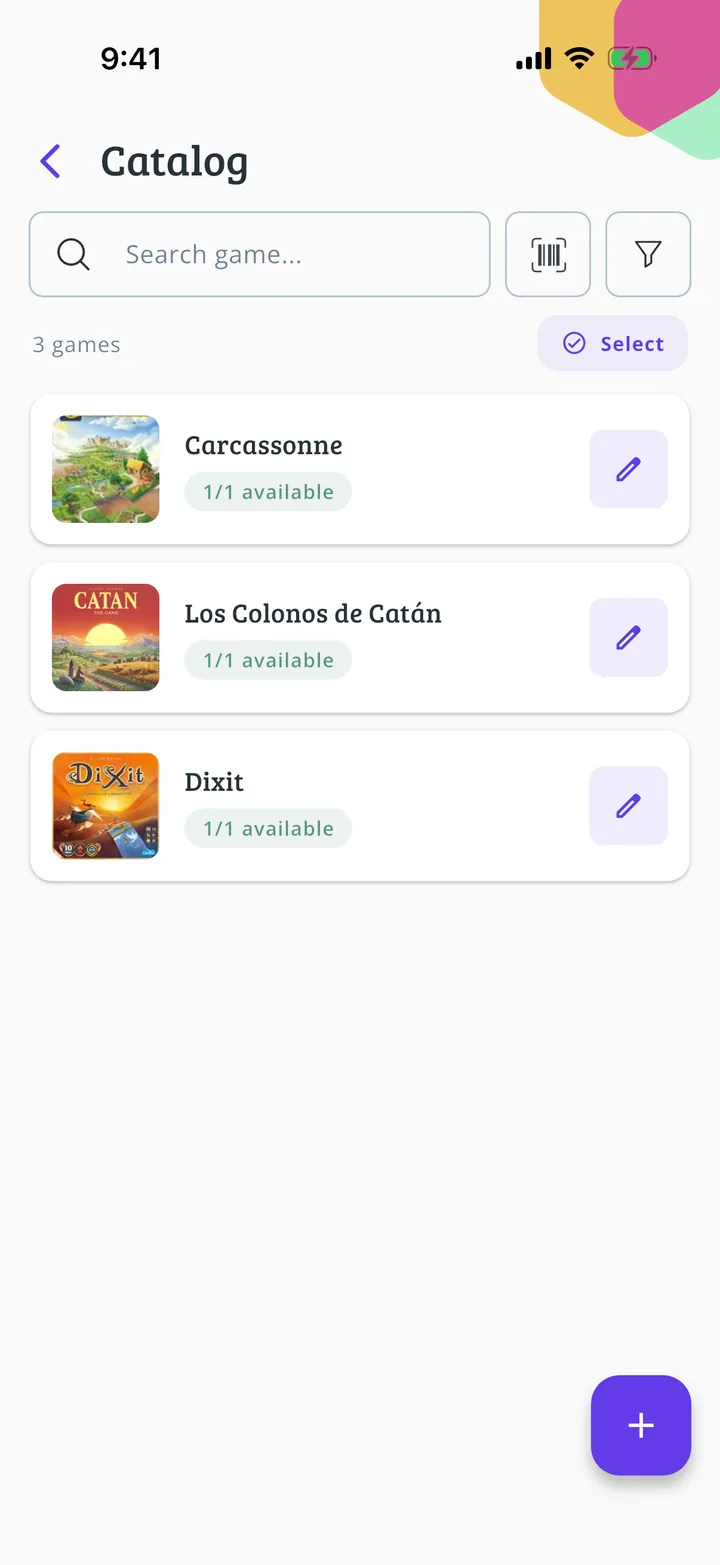
The catalogue lists your games with the available copies.
Guide completed
All done!
You have finished the guide. If something did not go as in the screenshots, tell us which step you got stuck on and we will help you.