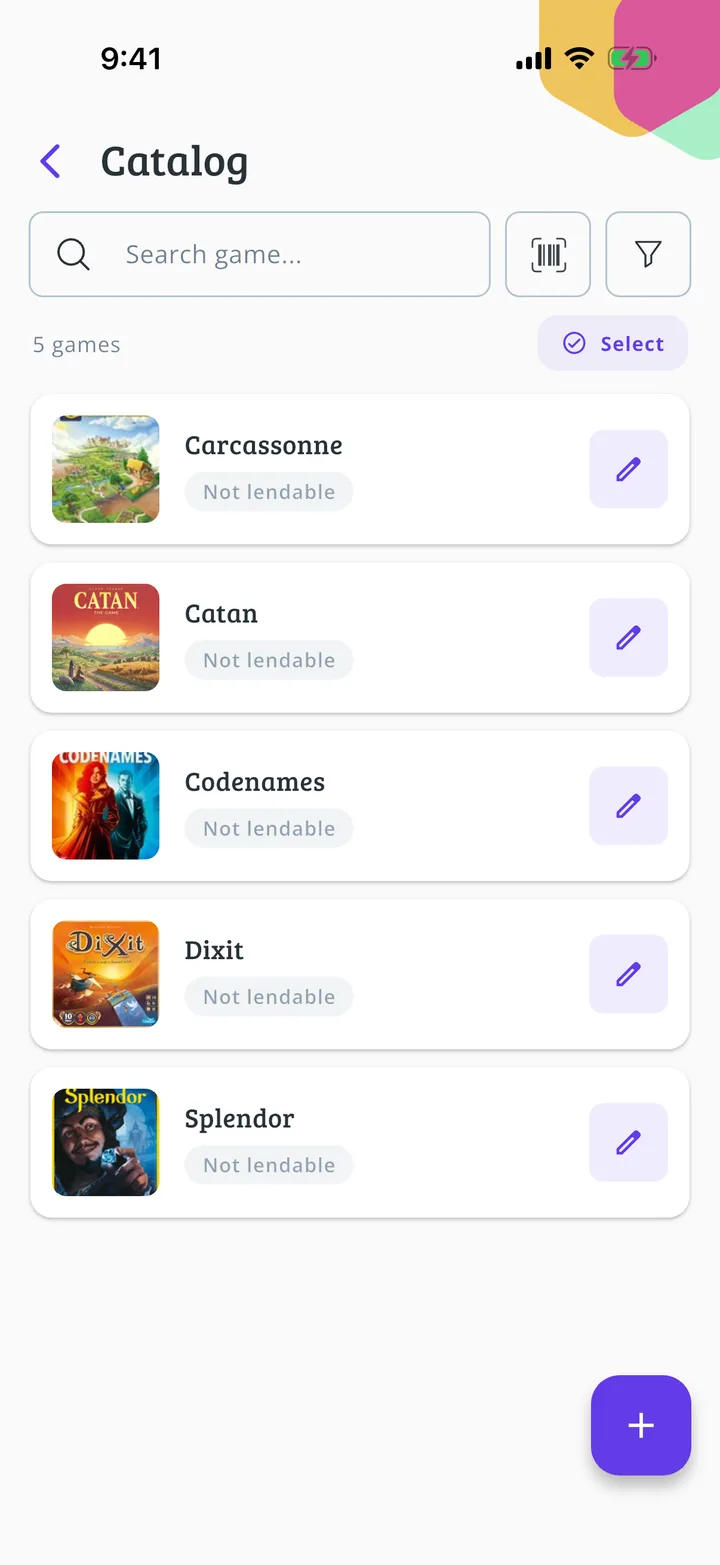
How to make your game library browse-only
Turn off lending for every game in the library at once: people still see what you have, but can't borrow it.
9 steps with screenshots of the app
A browse-only game library shows which games you have, but doesn't lend them: useful when games are played at your venue or at the event and never leave it. This guide turns off lending for every game at once. If some games are already on loan, follow How to switch a game library from lending to browse-only instead. It works the same for your club's game library and for a Meeplay's: you open a Meeplay's from its page, with the Game library button.
- Have the Meeplay app installed and be logged in to your account.
- Manage an organization on Meeplay. If you don't have one yet, follow the How to create your organization guide first.
- Have a game library with games. If you don't have one yet, follow How to load your club's game library one game at a time.
In each screenshot, what you need to tap is outlined in yellow and pointed out with an arrow.
- Step 1 of 9
Switch to your club's profile
On the home screen, tap the two arrows button to the right of your name.
- Step 2 of 9
Choose your club
Under Select an organizer, tap your club's name.
- Step 3 of 9
Open the game library
On your club's dashboard, tap the Library icon, the one with the shelf.
- Step 4 of 9
Open the catalog
The game library panel opens. Tap Catalog.
- Step 5 of 9
Select games
Here are all the games in the library, with the copies still free. Tap Select.
- Step 6 of 9
Select them all
Tap Select all. If you only want some games to be browse-only, tick them one by one.
- Step 7 of 9
Open bulk actions
Tap Bulk actions.
- Step 8 of 9
Turn off lending
Under Available for loan, tap Unmark. Below you'll see how many games change. Tap Apply.
- Step 9 of 9
Your game library is browse-only!
The games now show Not lendable. People still see the library and which games you have, but can no longer borrow them: each game shows View game details instead of Borrow. To lend them again, follow How to turn on loans in a game library.
All done!
You have finished the guide. If something did not go as in the screenshots, tell us which step you got stuck on and we will help you.