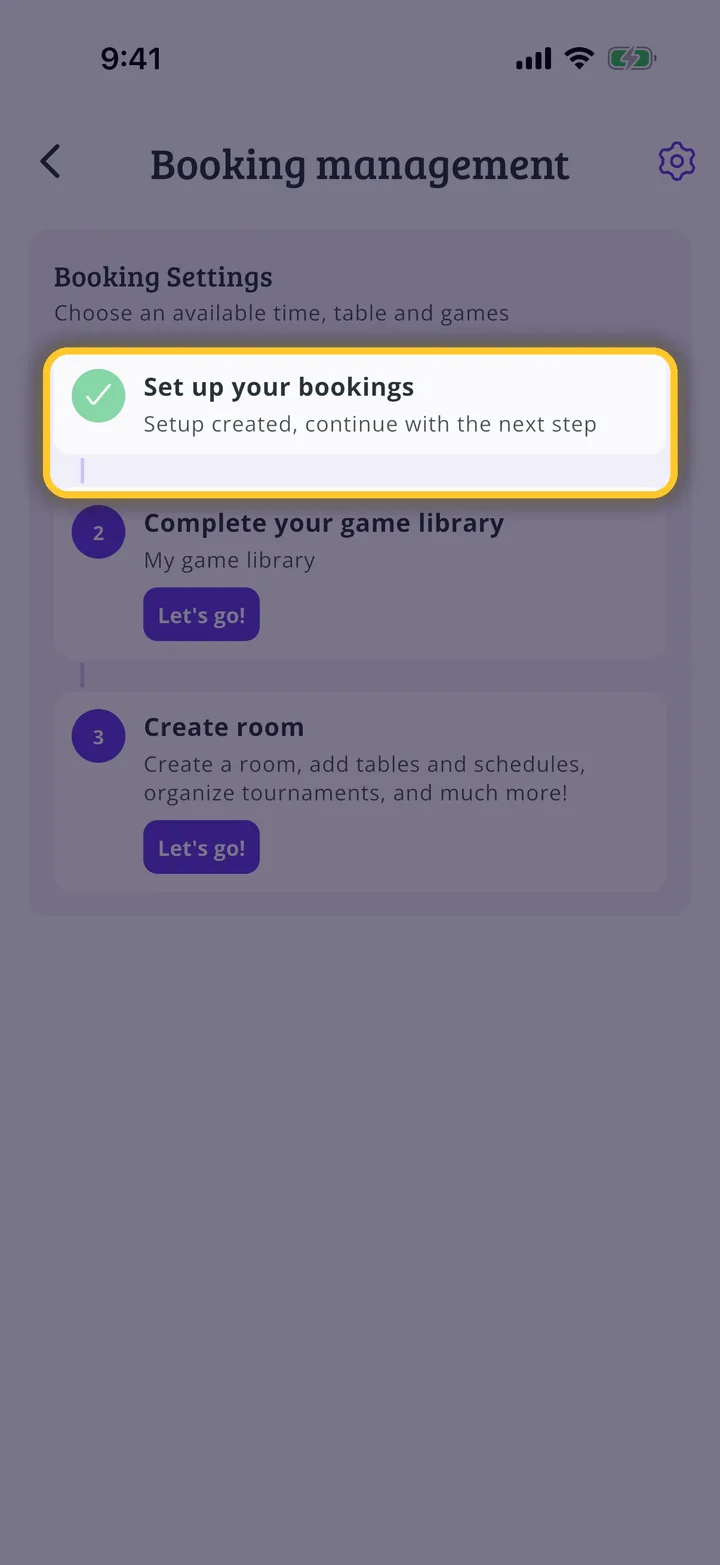
If your organization has a venue, you can accept bookings through the app. Setup has three stages: duration and capacity, schedule and prices, and payment. This guide prepares an afternoon schedule, Tuesday to Friday, with payment outside the app.
Have the Meeplay app installed and be logged in to your account.
In each screenshot, what you need to tap is outlined in yellow and pointed out with an arrow.
Step 1 of 12
Switch to your organization's profile
On the home screen, tap the two arrows button to the right of your name.
Step 2 of 12
Choose your organization
Under Select an organizer, tap your organization's name.
Step 3 of 12
Start on the dashboard
Tap Set up your bookings.
Step 4 of 12
Create the configuration
Booking settings lists the stages. In the first one, tap Let's go!.
Step 5 of 12
Duration and capacity
Set the minimum and maximum duration, how often time slots start and the places available to book. You also decide whether games from your library can be added. Tap Next.
Step 6 of 12
Add the schedule
Under Booking schedule, tap Create new.
Step 7 of 12
Choose the times
Name it, turn on the first day's switch and tap the start. Move the wheels to the time and mark any other days with the same schedule below. Tap Accept and do the same with the end.
Step 8 of 12
Create the schedule
Check the times for each day and tap Create.
Step 9 of 12
Prices
The schedule is now selected. To charge for bookings, add a rule under Price rules. If not, tap Next.
Step 10 of 12
Payment
In the app: Online payment via Stripe. Other: Cash, card, etc.. You can add payment instructions and your cancellation policy.
Step 11 of 12
Who can book
Scroll down. With Manual approval you confirm each booking before accepting it. Choose who can book and tap Save.