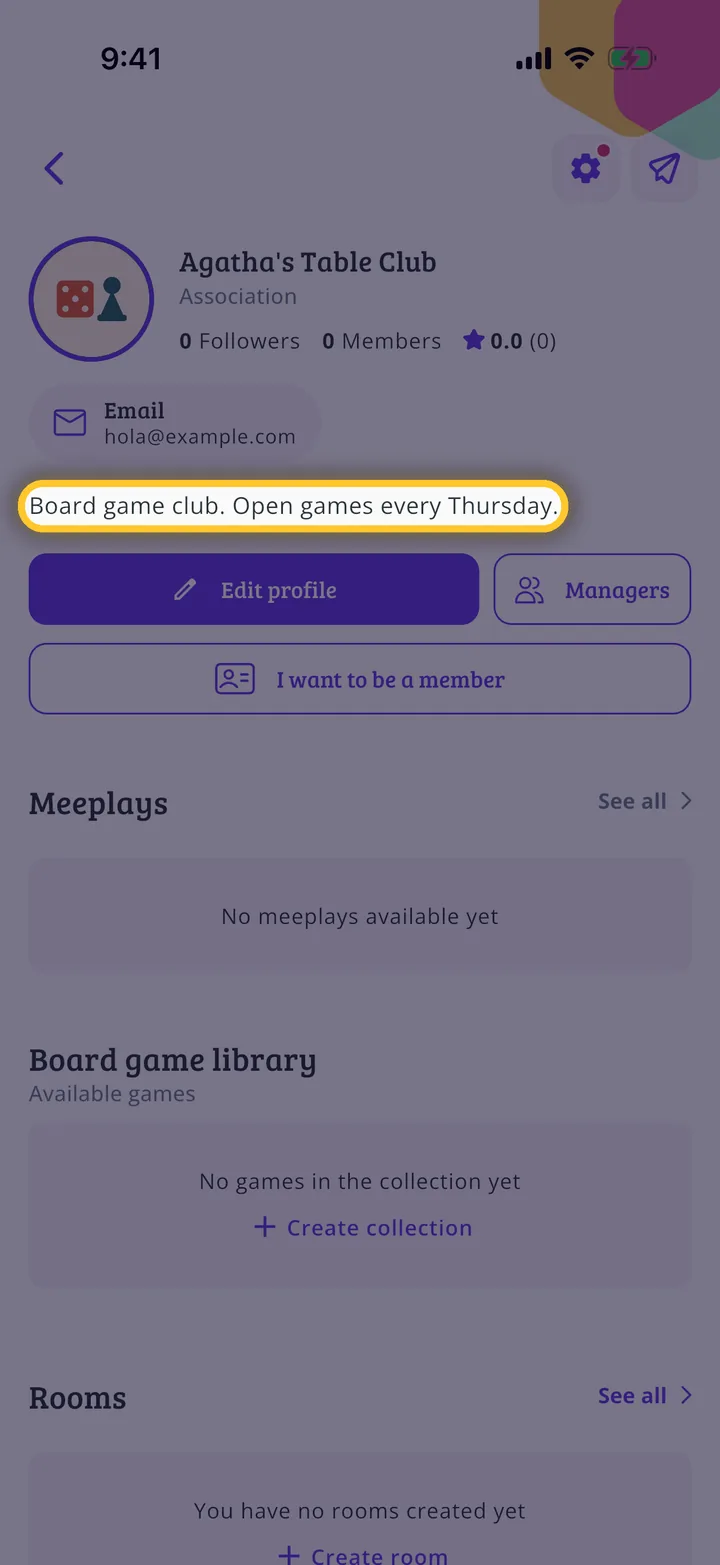
Your organization's details aren't fixed once you create it: you can change them whenever you like from its profile. This guide updates the description, and the other sections are edited the same way.
Have the Meeplay app installed and be logged in to your account.
In each screenshot, what you need to tap is outlined in yellow and pointed out with an arrow.
Step 1 of 9
Switch to your organization's profile
On the home screen, tap the two arrows button to the right of your name.
Step 2 of 9
Choose your organization
Under Select an organizer, tap your organization's name.
Step 3 of 9
Open your organization's profile
On the dashboard, tap your organization's name at the top left.
Step 4 of 9
Start editing
On your organization's profile, tap Edit profile.
Step 5 of 9
Choose what to change
The details are in five sections: general information, profile picture, opening hours, services and social media. For now this menu appears in Spanish on every language. Tap the first option, Información general.
Step 6 of 9
Name and type
At the top you can change the Organization name and the Type. If you are a club, you can also decide whether people can ask to join as members.
Step 7 of 9
Contact details and description
Scroll down to change the Address, Contact email, Contact phone and Website. Then tap the Description.
Step 8 of 9
Type and save
Type the new text and tap Save.
Step 9 of 9
Updated!
The app goes back to the profile with your changes applied. To change the picture, opening hours, services or social media, go back to Edit profile and choose that section.
Guide completed
All done!
You have finished the guide. If something did not go as in the screenshots, tell us which step you got stuck on and we will help you.