How to receive games at the flea market desk
Check the games each stall hands in by scanning their label or typing their code, and record the delivery.
12 steps with screenshots of the app
When someone brings their games, you need to check they are handing in what they registered. That way each game is in the flea market's care and ready to sell.
- Have the Meeplay app installed and be logged in to your account.
- Manage an organization on Meeplay. If you don't have one yet, follow the How to create your organization guide first.
- Have a flea market with items. If you don't have one yet, follow How to create a flea market in your Meeplay.
In each screenshot, what you need to tap is outlined in yellow and pointed out with an arrow.
- Step 1 of 12
Switch to your organization's profile
On the home screen, tap the two arrows button to the right of your name.
- Step 2 of 12
Choose your organization
Under Select an organizer, tap your organization's name.
- Step 3 of 12
Open the agenda
Tap the calendar on the bottom bar.
- Step 4 of 12
Open the Meeplay
In list view, tap the Meeplay that has the flea market.
- Step 5 of 12
Open the flea market
On the page, tap Flea market.
- Step 6 of 12
Open the panel
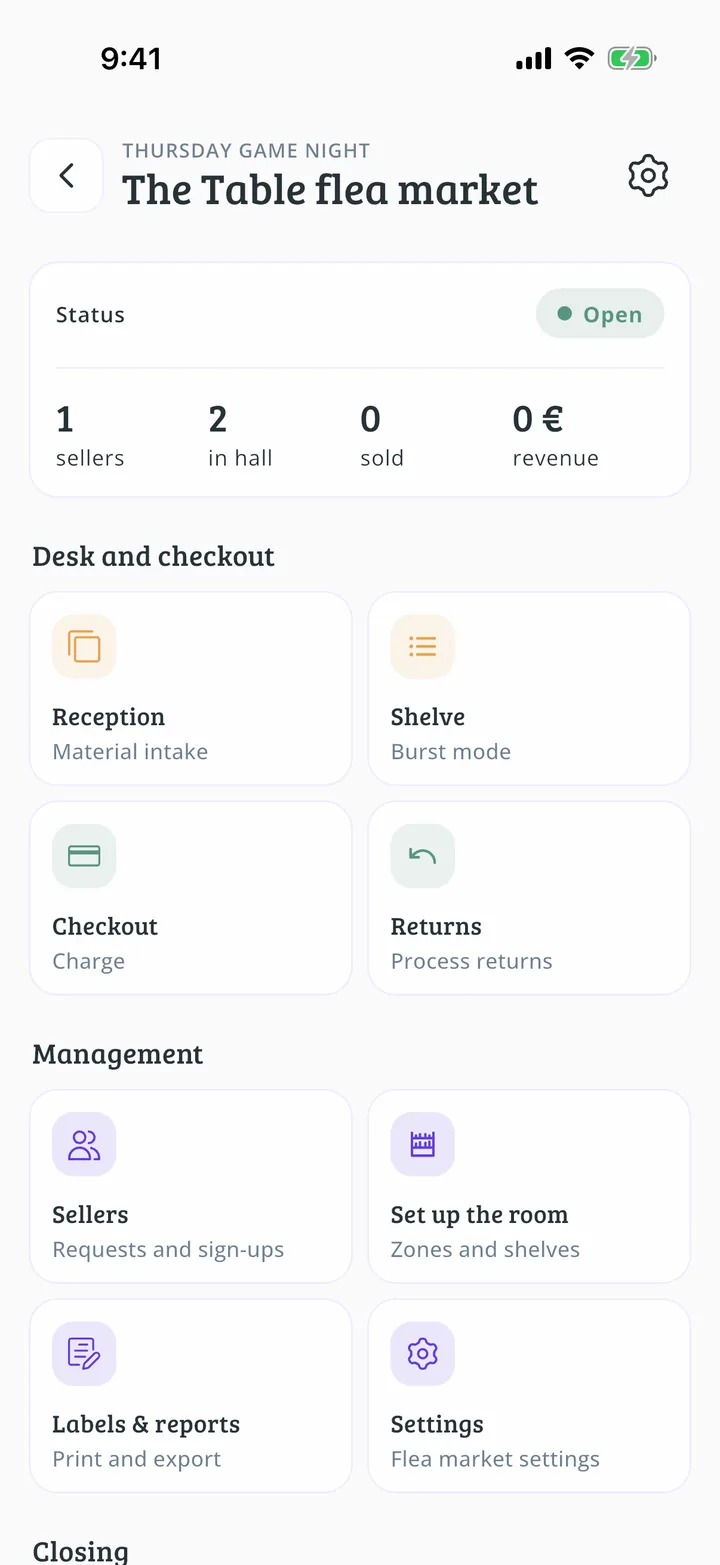
Tap Management panel.
- Step 7 of 12
Open reception
Tap Reception.
- Step 8 of 12
Choose the stall
Find the person handing in the games and tap them.
- Step 9 of 12
Scan their games
Point the camera at each label. If you prefer to type the code, tap the keyboard at the top. Choose location sets where they will stay.
- Step 10 of 12
Game received
Each game you scan is received. Tap Continue and go on to the next one.
- Step 11 of 12
Finish the delivery
When they are all in, tap Finish delivery.
- Step 12 of 12
Delivery recorded
If you left them unplaced, place them later with Shelve, on the panel.
All done!
You have finished the guide. If something did not go as in the screenshots, tell us which step you got stuck on and we will help you.
Next in «Create your event»How to take payment at the flea market till →