At a flea market, participants hand in their games and your organization receives, places and sells them and settles the money. This guide creates the flea market and publishes it so requests can start coming in.
Have the Meeplay app installed and be logged in to your account.
Have the flea market available in that Meeplay. If something needs to be purchased, the app tells you when you open it.
In each screenshot, what you need to tap is outlined in yellow and pointed out with an arrow.
Step 1 of 13
Switch to your organization's profile
On the home screen, tap the two arrows button to the right of your name.
Step 2 of 13
Choose your organization
Under Select an organizer, tap your organization's name.
Step 3 of 13
Open the agenda
Tap the calendar on the bottom bar.
Step 4 of 13
Open the Meeplay
In list view, tap the Meeplay where you want to set up the flea market.
Step 5 of 13
Open the menu
On the page, tap the three dots at the top right.
Step 6 of 13
Edit the Meeplay
Tap Edit Meeplay and, in the notice, tap Edit Meeplay again.
Step 7 of 13
Open the flea market
Scroll down to Advanced settings and tap Flea market.
Step 8 of 13
Name it
Type the name. The prefix is optional: it's used in sellers' codes. Tap Create flea market.
Step 9 of 13
Fill in the rules
All the settings are here: schedule, sellers, items, money and returns. Review the ones you need. Check the highlighted ones before publishing: tap Rules.
Step 10 of 13
Write and publish the rules
Anyone who wants to sell will have to read and accept them. Write them and tap Publish rules.
Step 11 of 13
Review the closing rules
Under Closing you decide what happens to lost items and to money and items nobody claims. Go back.
Step 12 of 13
Publish the flea market
When you're happy with it, tap Publish flea market.
Step 13 of 13
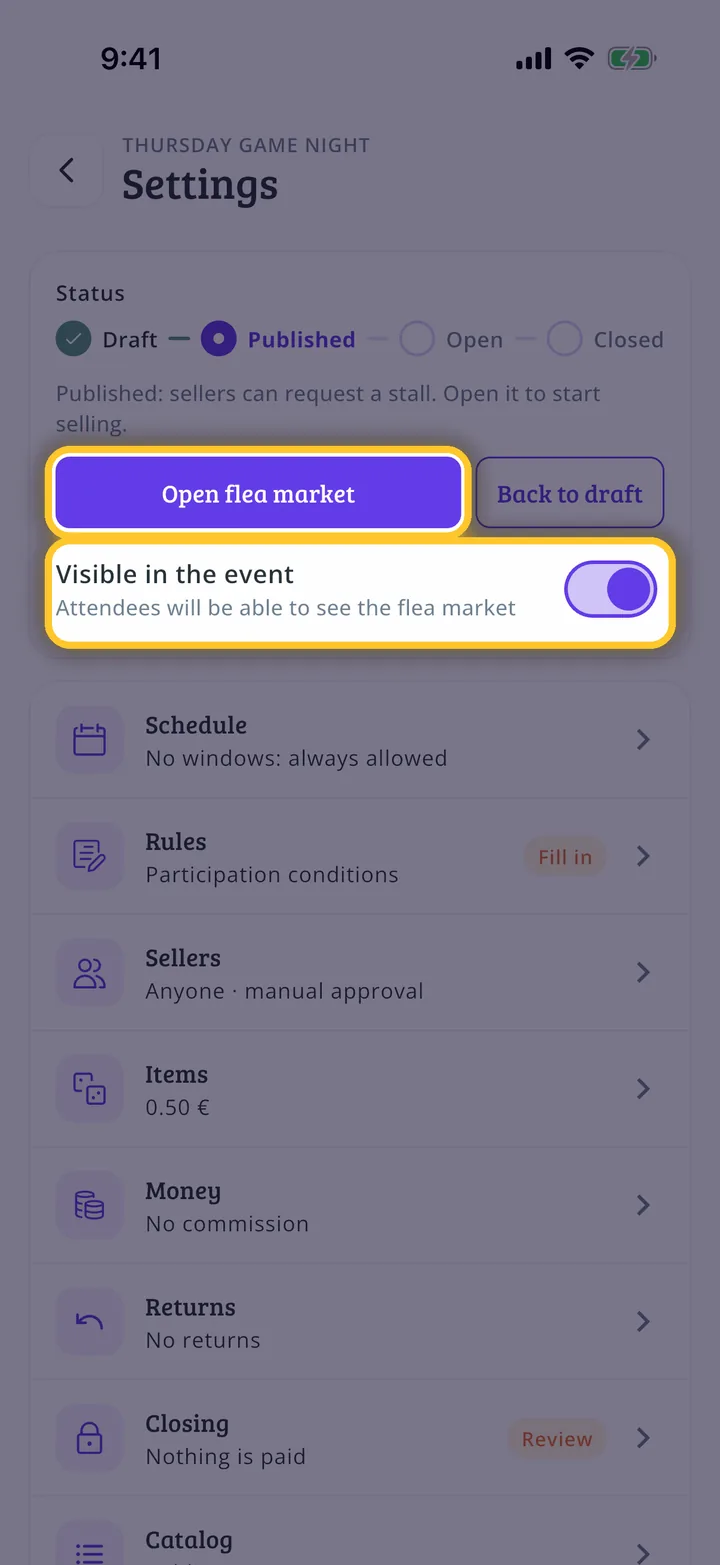
Published!
People can now request a stall. Turn on Visible in the event so it shows in the Meeplay and, when sales begin, tap Open flea market. Even if the prompt to fill them in appears next to Rules again, the rules are already published.
Guide completed
All done!
You have finished the guide. If something did not go as in the screenshots, tell us which step you got stuck on and we will help you.