Privacy and admission: how to control who joins your Meeplay
Decide whether your Meeplay shows up in searches, who can join and whether you have to accept each person before they get in.
6 steps with screenshots of the app
When you create a Meeplay you decide three things: whether it shows up in searches (privacy), who can join (access) and whether people get in straight away or you have to accept them (admission). This guide sets up a private game night at home, only for people you follow and with manual admission.
- Have the Meeplay app installed and be logged in to your account.
- Be creating a Meeplay. If you don't know how to start, follow the How to create your first Meeplay guide first.
In each screenshot, what you need to tap is outlined in yellow and pointed out with an arrow.
- Step 1 of 6
Open privacy
On the Meeplay form, under Quick settings, tap Privacy.
- Step 2 of 6
Public or private
Public: Visible to all users in search results. Private: It will not appear in other users' search results. Tap Private.
- Step 3 of 6
Choose who can join
Right after that, the app asks who can join: All users or only Followed users. Tap Followed users.
- Step 4 of 6
Open admission
Privacy is now summed up in a row of the form. Now tap Admission.
- Step 5 of 6
Manual or automatic admission
Manual: The organizer is responsible for accepting or denying requests. Automatic: All users can join without approval. Tap Manual.
- Step 6 of 6
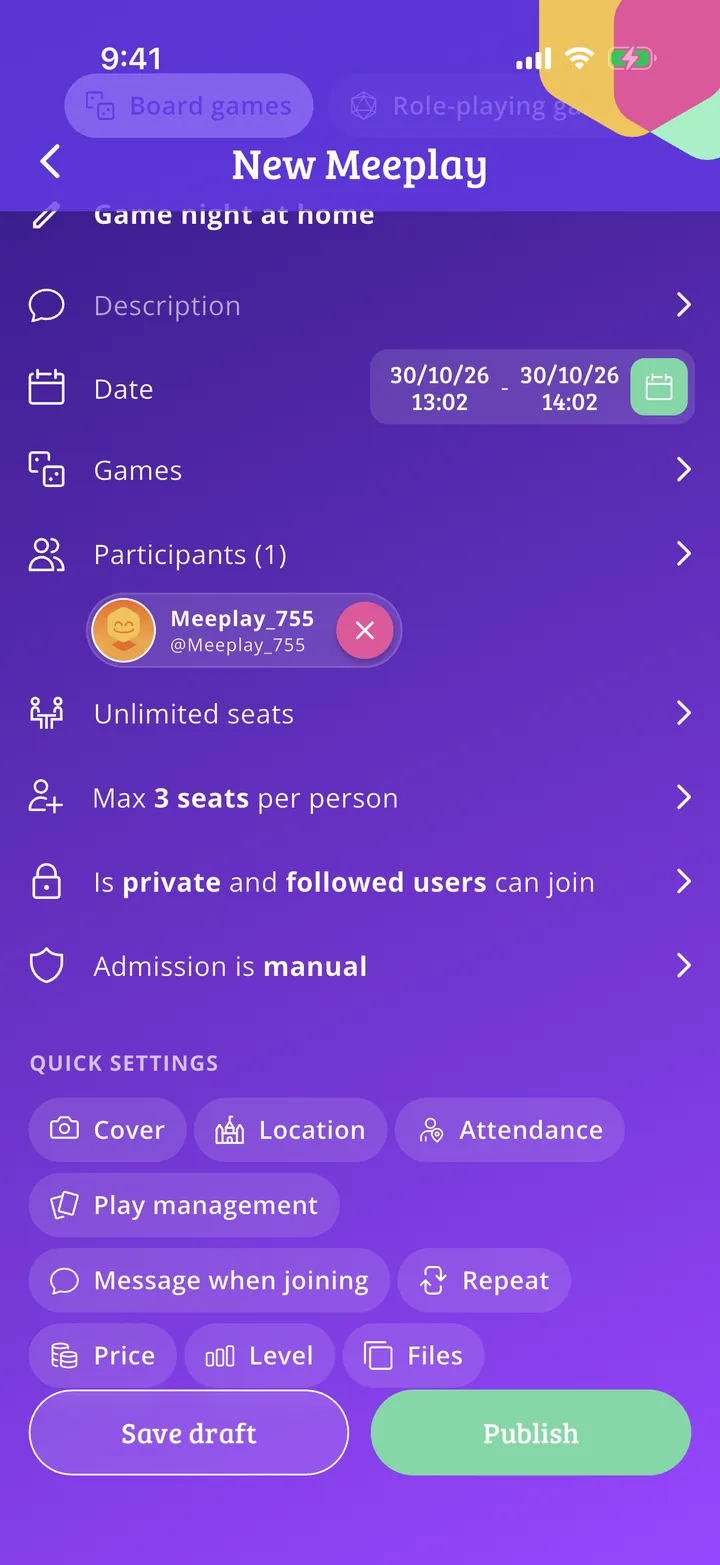
Check the summary
Both choices are shown on the form; tap either row to change them. Finish the Meeplay and publish it as in How to create your first Meeplay. With manual admission, when someone asks to join you will see it under Show pending requests, on the Meeplay page.
All done!
You have finished the guide. If something did not go as in the screenshots, tell us which step you got stuck on and we will help you.
Next in «Create your event»Recurring Meeplays: how to schedule them automatically →