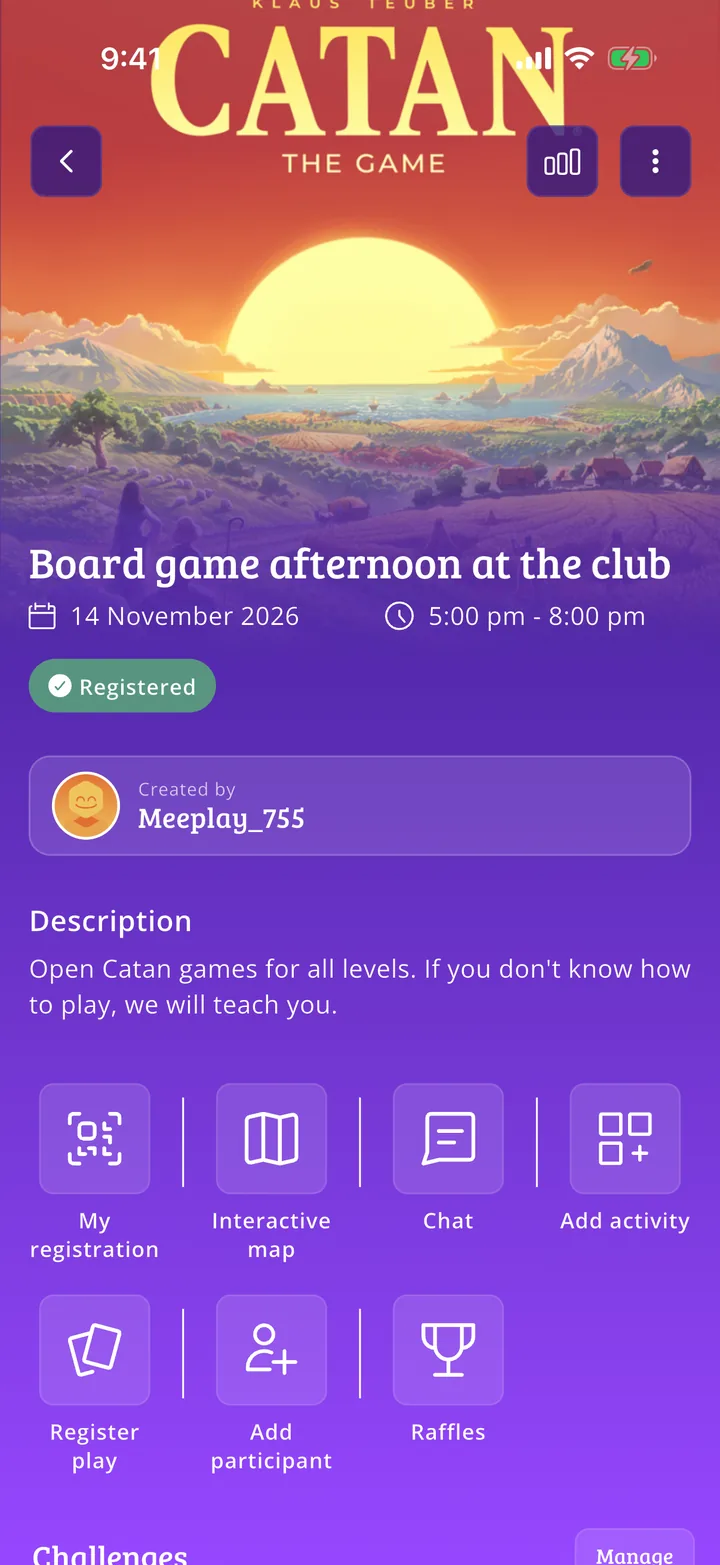
A Meeplay groups the games of a meetup with friends, a tournament or an event. This guide creates one from start to finish: a Catan afternoon with limited seats, open to anyone.
Have the Meeplay app installed and be logged in to your account.
In each screenshot, what you need to tap is outlined in yellow and pointed out with an arrow.
Step 1 of 20
Open the create menu
On the home screen, tap the + button in the middle of the bottom bar.
Step 2 of 20
Choose "New Meeplay"
Tap the New Meeplay icon.
Step 3 of 20
The first time, a short introduction
The first time you create a Meeplay, the app explains what it is for in four screens. Go through them with Tell me more and the buttons that follow, or close it with the X at the top.
Step 4 of 20
Choose the type and name it
At the top, choose whether it is for Board games or Role-playing games. Then tap Meeplay name and type its name.
Step 5 of 20
Add a description
Tap Description, explain what the Meeplay is about and tap Accept.
Step 6 of 20
Open the date
Tap the calendar button to the right of Date.
Step 7 of 20
Expand the start
Tap Start at to open the calendar.
Step 8 of 20
Choose the start day and time
Tap the day on the calendar (the arrows at the top change the month) and set the start time by scrolling the wheels.
Step 9 of 20
Set the end time and confirm
Tap Finish at, set the end time with the wheels and tap Confirm.
Step 10 of 20
Choose what will be played
Tap Games.
Step 11 of 20
Search for the games and select them
Type the game's name at the top and tap the one you want to select it; you can select several. Then tap the Add button at the bottom.
Step 12 of 20
Decide how many seats there are
You already appear under Participants. Seats are unlimited unless you set a cap: to set one, tap Unlimited seats.
Step 13 of 20
Set the maximum number of seats
Choose Maximum seats, set the number with the − and + buttons and tap Accept.
Step 14 of 20
Decide who can see it
Under Quick settings you have the rest of the options: cover, location, price, repeat… Tap Privacy.
Step 15 of 20
Public or private
With Public, anyone can find it in searches; with Private, it does not show up in other users' searches. Tap the option you want.
Step 16 of 20
Who can join
Choose whether All users can join or only Followed users.
Step 17 of 20
Publish the Meeplay
When it is ready, tap Publish. Save draft keeps it without publishing it.
Step 18 of 20
Confirm
The app warns you that the Meeplay will be visible to everyone and that your followers and nearby people will be notified. Tap Publish.
Step 19 of 20
Meeplay created!
Tap Done.
Step 20 of 20
Your Meeplay page
Your Meeplay page is ready. From here you have Register play, Add participant and Chat, among other options.
Guide completed
All done!
You have finished the guide. If something did not go as in the screenshots, tell us which step you got stuck on and we will help you.