Not everyone has a Meeplay account, but you can still add them: you create a player with their name and add it to the participant list. That player stays saved in your account, and you can also use it to log games with that person.
Have the Meeplay app installed and be logged in to your account.
Have created the Meeplay or be able to manage it. If you don't have one yet, follow the How to create your first Meeplay guide first.
In each screenshot, what you need to tap is outlined in yellow and pointed out with an arrow.
Step 1 of 11
Open your Meeplay
On the home screen, under Mis eventos, tap your Meeplay.
Step 2 of 11
Go to the participants
Scroll down to the participants and tap Edit.
Step 3 of 11
Add a participant
This is the participant list. Tap the + button at the bottom right.
Step 4 of 11
Look for the participant
Tap Search user....
Step 5 of 11
Create a player
If the person has an account, search for their name. If they don't, tap Create player.
Step 6 of 11
Type their name
Type the person's name and tap Add. If you like, tap the picture to change it.
Step 7 of 11
Select them
The new player appears at the top of the list, as Player created. Tap it.
Step 8 of 11
Add the payment and confirm
If the Meeplay has a fee, choose the Payment method and enter the amount; if it is free, leave it as it is. Tap Add participant.
Step 9 of 11
Confirm
Tap Add.
Step 10 of 11
Added!
Tap Done.
Step 11 of 11
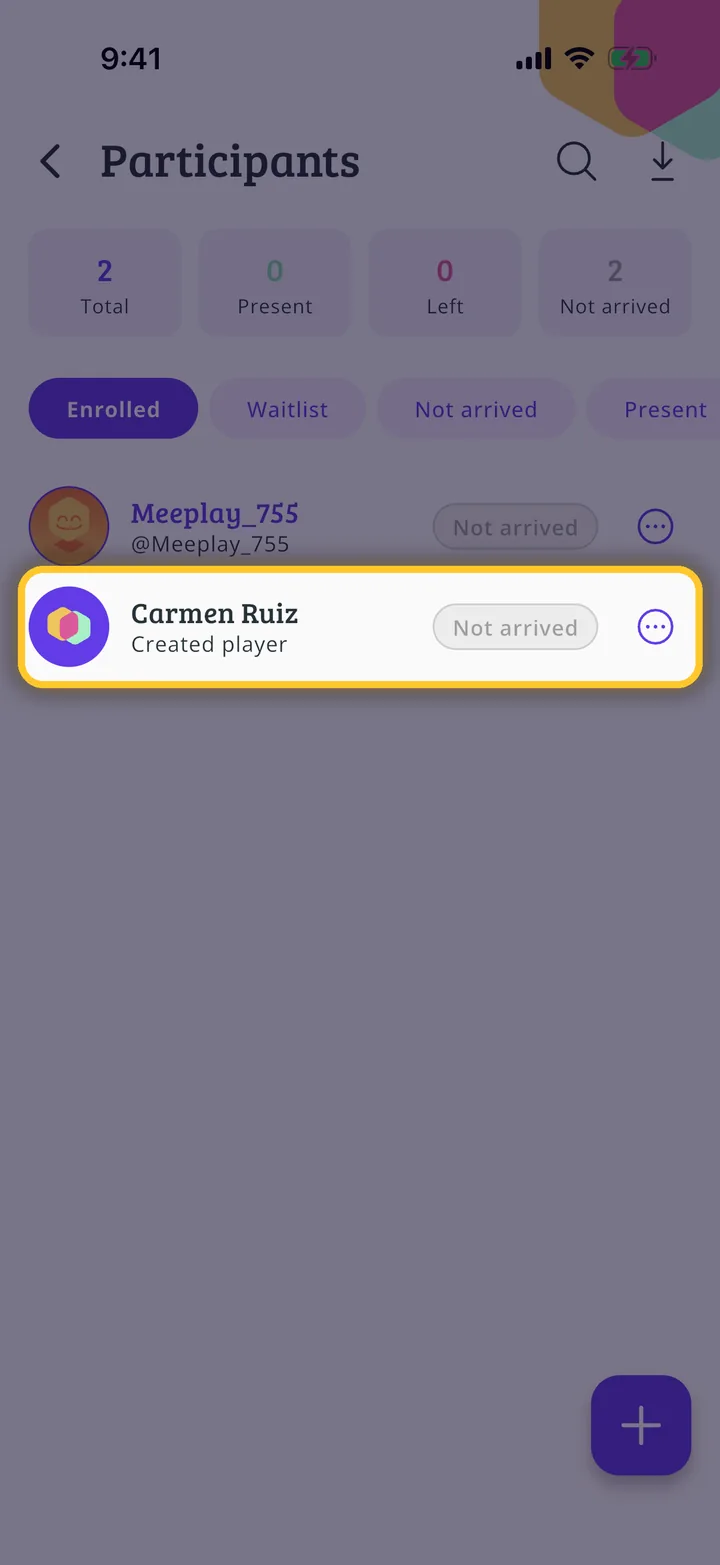
They are on the list
The person appears on the participant list as Created player. Repeat the steps to add more people.
Guide completed
All done!
You have finished the guide. If something did not go as in the screenshots, tell us which step you got stuck on and we will help you.