How to edit an activity
Change the time, places, price or description of an activity already published in your event program.
10 steps with screenshots of the app
You can change a published activity whenever you like: the time, places, price or any text. This guide adds places to a workshop.
- Have the Meeplay app installed and be logged in to your account.
- Manage the organization that runs the Meeplay.
- Have the activity created: see How to create the activity schedule.
In each screenshot, what you need to tap is outlined in yellow and pointed out with an arrow.
- Step 1 of 10
Switch to your organization's profile
On the home screen, tap the two arrows button to the right of your name.
- Step 2 of 10
Choose your organization
Under Select an organizer, tap your organization's name.
- Step 3 of 10
Open the agenda
Tap the calendar on the bottom bar.
- Step 4 of 10
Open the Meeplay
In list view, tap the Meeplay that has the activity.
- Step 5 of 10
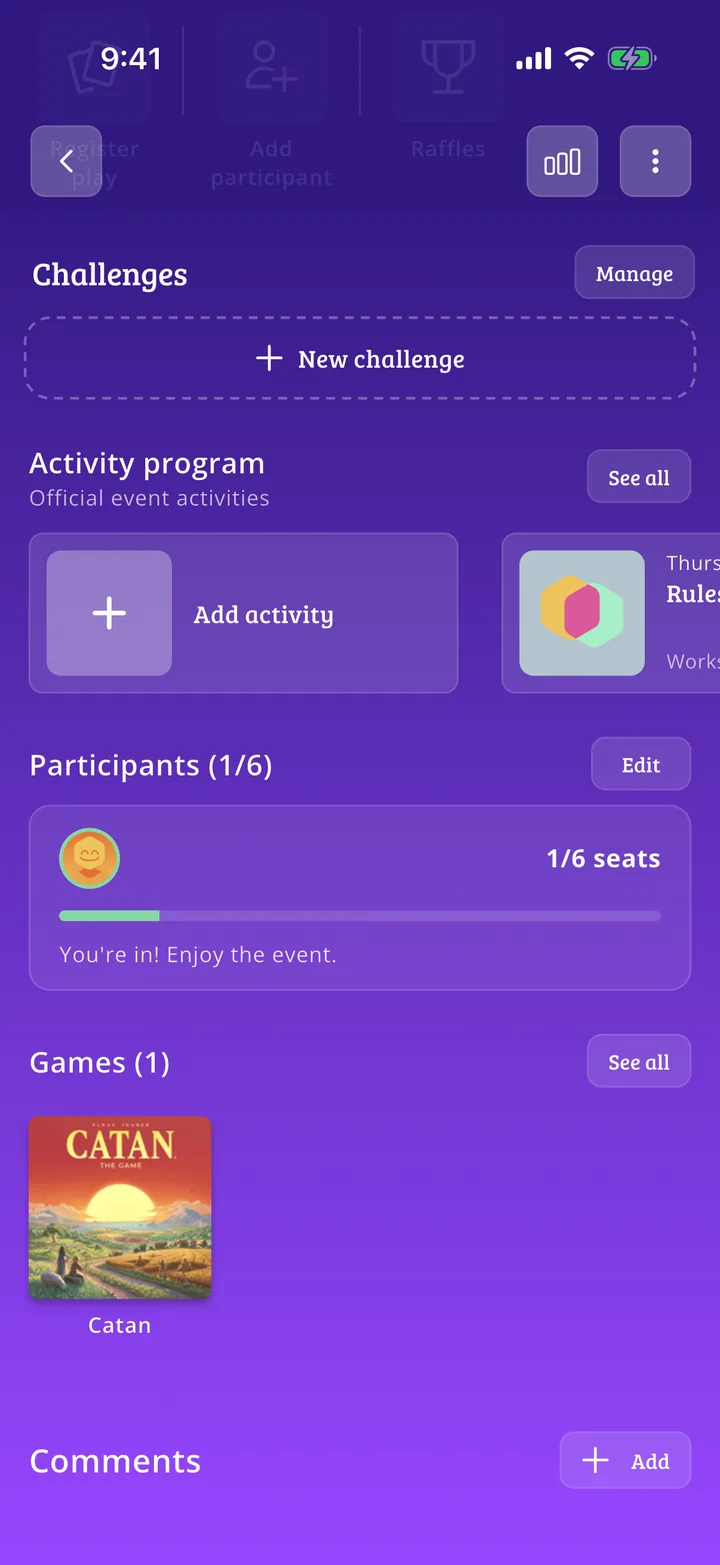
Open the activity
Under Activity program, tap the activity you want to change.
- Step 6 of 10
Tap "Edit"
On the activity page, tap Edit at the top right.
- Step 7 of 10
Change whatever you need
You get the same details as when you created it: type, title, descriptions, dates, places, price, minimum age and language. Change what you need; everything else stays as it was.
- Step 8 of 10
Save the changes
In this example, the Capacity limit goes from 10 to 16. When you're done, tap Edit activity.
- Step 9 of 10
Confirm
Tap Save.
- Step 10 of 10
Activity updated
The changes are saved and you're back on the Meeplay page. If you ever need to remove the activity, Delete is at the bottom of the same form.
All done!
You have finished the guide. If something did not go as in the screenshots, tell us which step you got stuck on and we will help you.