A Meeplay can have its own activity program: talks, demos, signings, competitions… Each activity has its own page, with its time, places and price. This guide adds a games demo.
Have the Meeplay app installed and be logged in to your account.
In each screenshot, what you need to tap is outlined in yellow and pointed out with an arrow.
Step 1 of 11
Switch to your organization's profile
On the home screen, tap the two arrows button to the right of your name.
Step 2 of 11
Choose your organization
Under Select an organizer, tap your organization's name.
Step 3 of 11
Open the agenda
Tap the calendar on the bottom bar.
Step 4 of 11
Open the Meeplay
In list view, tap the Meeplay you want to add activities to.
Step 5 of 11
Tap "Add activity"
On the page, tap the Add activity icon.
Step 6 of 11
Title and description
You can add a cover image. Type the Title* and the Short description*, which are required. Below you have a longer description.
Step 7 of 11
Choose the date
Scroll down and tap Start date*: the calendar suggests the Meeplay's date. Change it if needed and accept.
Step 8 of 11
Choose the type
At the top, under Activity type*, open the list and choose yours: talk, demo, signing, game…
Step 9 of 11
Check and publish
At the end you can set the Capacity limit, price, minimum age and language, add Additional schedules if it has several sessions and, under Organize activity, link it to a Meeplay or tournament. Tap Publish.
Step 10 of 11
Confirm
Tap Publish to confirm.
Step 11 of 11
Activity published
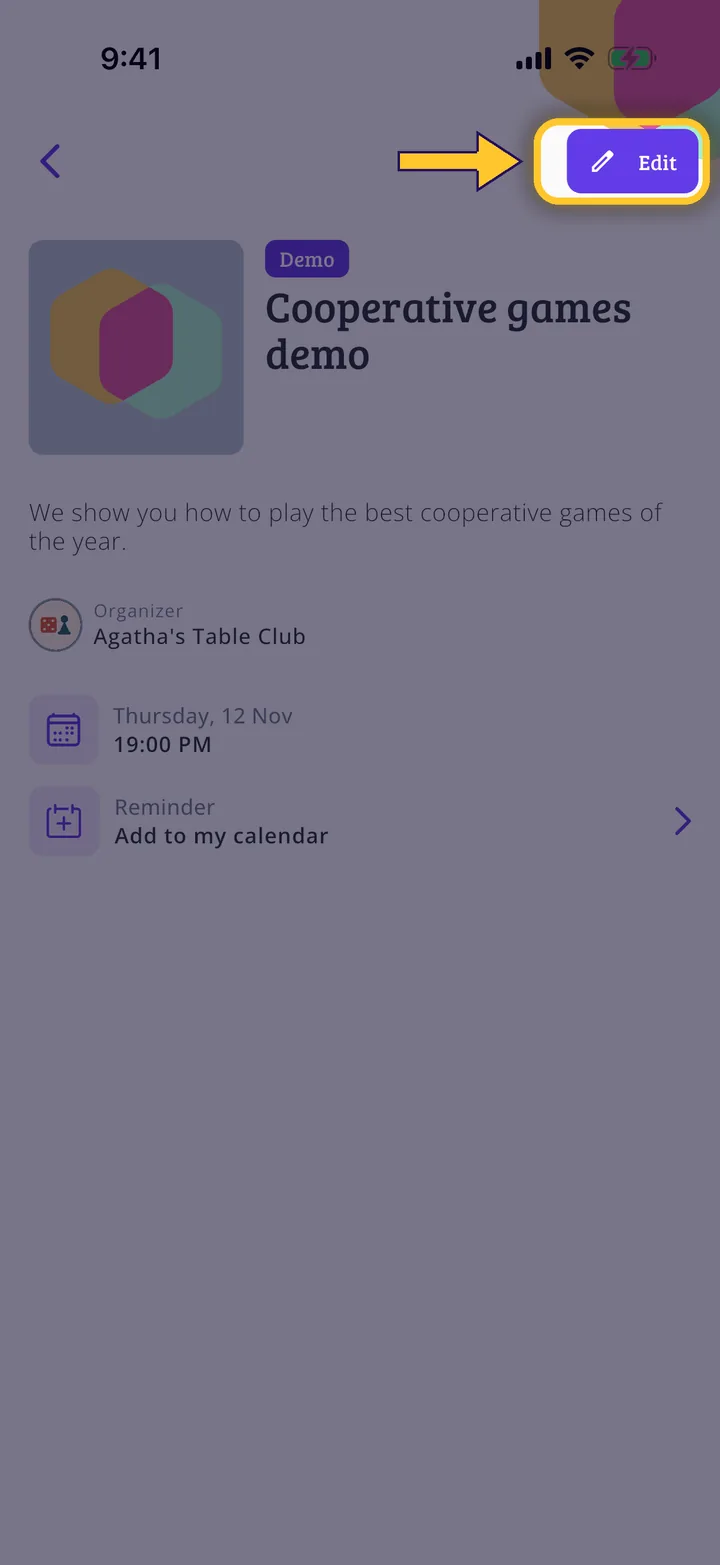
It now has its own page and shows in the Meeplay's activity program. Edit changes it whenever you like. Repeat to add the rest.
Guide completed
All done!
You have finished the guide. If something did not go as in the screenshots, tell us which step you got stuck on and we will help you.