How to create Meeplays from your organizer account
Publish events on behalf of your shop, club or association: switch to the organization's profile and create the Meeplay from there.
5 steps with screenshots of the app
A Meeplay created from the organization's profile appears under its name, not yours, and has extra options: rooms and tables, activities program, requirements and external registration.
- Have the Meeplay app installed and be logged in to your account.
- Manage an organization on Meeplay. If you don't have one yet, follow the How to create your organization guide first.
In each screenshot, what you need to tap is outlined in yellow and pointed out with an arrow.
- Step 1 of 5
Switch to your organization's profile
On the home screen, tap the two arrows button to the right of your name.
- Step 2 of 5
Choose your organization
Under Select an organizer, tap your organization's name.
- Step 3 of 5
Open "New Meeplay"
Tap the + button at the bottom and then the New Meeplay icon.
- Step 4 of 5
Fill it in and publish
It is the usual form (see How to create your first Meeplay), with extra options such as Assign rooms and tables, Activities program and Registration requirements. When it is ready, tap Publish and confirm.
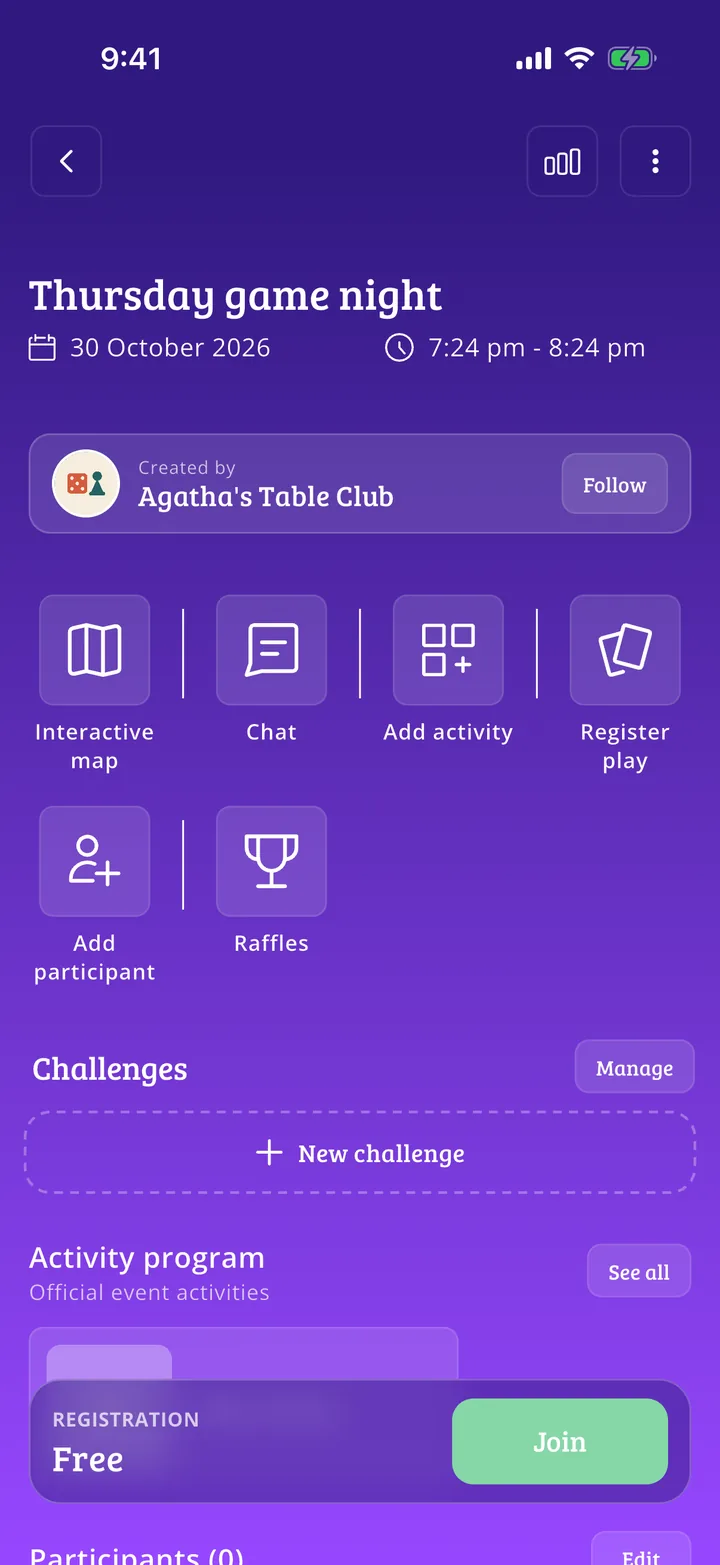
- Step 5 of 5
Published under your organization's name
Your page is ready. It appears as created by your organization and shows on its profile.
All done!
You have finished the guide. If something did not go as in the screenshots, tell us which step you got stuck on and we will help you.