Where to see all your Meeplays as an organizer
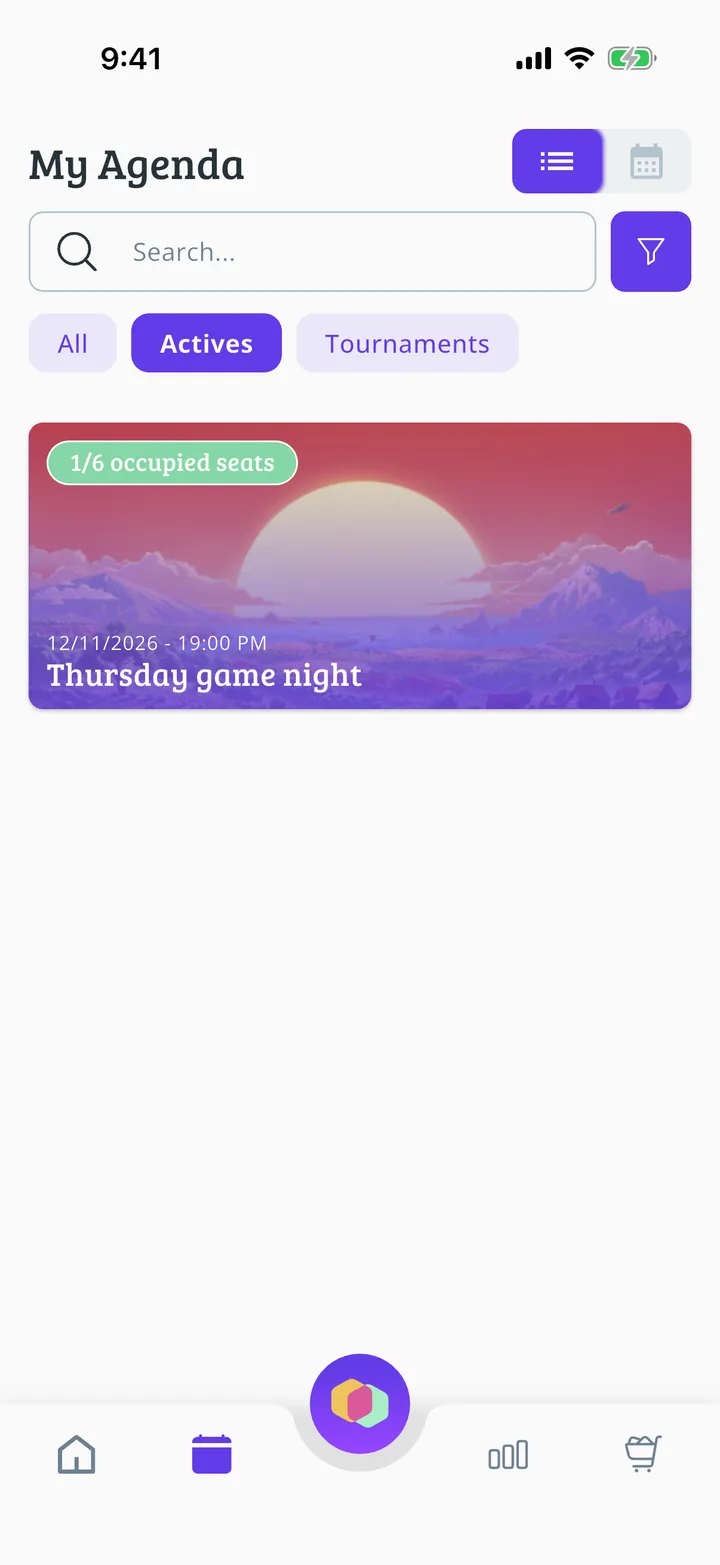
Check your organization's Meeplays in the app, as a calendar or a list, with the seats taken.
5 steps with screenshots of the app
With the organization's profile active, the bottom bar has an agenda with all its events. You can see it as a calendar or a list.
- Have the Meeplay app installed and be logged in to your account.
- Manage an organization on Meeplay. If you don't have one yet, follow the How to create your organization guide first.
In each screenshot, what you need to tap is outlined in yellow and pointed out with an arrow.
- Step 1 of 5
Switch to your organization's profile
On the home screen, tap the two arrows button to the right of your name.
- Step 2 of 5
Choose your organization
Under Select an organizer, tap your organization's name.
- Step 3 of 5
Open the agenda
Tap the calendar on the bottom bar.
- Step 4 of 5
Calendar or list
Under My Agenda you see the calendar, with each day marked. Tap the list button at the top right to see them all in a row.
- Step 5 of 5
Your Meeplays
Each Meeplay shows the date and seats taken; tap it to open it. At the top you can search and filter by All, Actives or Tournaments.
All done!
You have finished the guide. If something did not go as in the screenshots, tell us which step you got stuck on and we will help you.