How to create tiered tickets
Create different registration tiers with their own price, sale dates, capacity and priority access.
8 steps with screenshots of the app
If your event has several tickets, such as an early bird and a general one, each tier can have its own price, dates and capacity.
- Have the Meeplay app installed and be logged in to your account.
- Manage an organization on Meeplay. If you don't have one yet, follow the How to create your organization guide first.
- Have the links to your cancellation policy and terms and conditions ready: they are required as soon as you ask for any detail.
In each screenshot, what you need to tap is outlined in yellow and pointed out with an arrow.
- Step 1 of 8
Switch to your organization's profile
On the home screen, tap the two arrows button to the right of your name.
- Step 2 of 8
Choose your organization
Under Select an organizer, tap your organization's name.
- Step 3 of 8
Open "New Meeplay"
Tap the + button at the bottom and then the New Meeplay icon.
- Step 4 of 8
Open the requirements
On the Meeplay form, tap Registration requirements.
- Step 5 of 8
Add a tier
Scroll down to Registration tiers & price and tap Add tier.
- Step 6 of 8
Name it and choose the payment mode
Enter the name and the Sale dates, then choose No payment, External payment or In-app payment.
- Step 7 of 8
Set the price and save
Enter the Price and, if you like, the Payment instructions, Max capacity and Priority access. Tap Save tier.
- Step 8 of 8
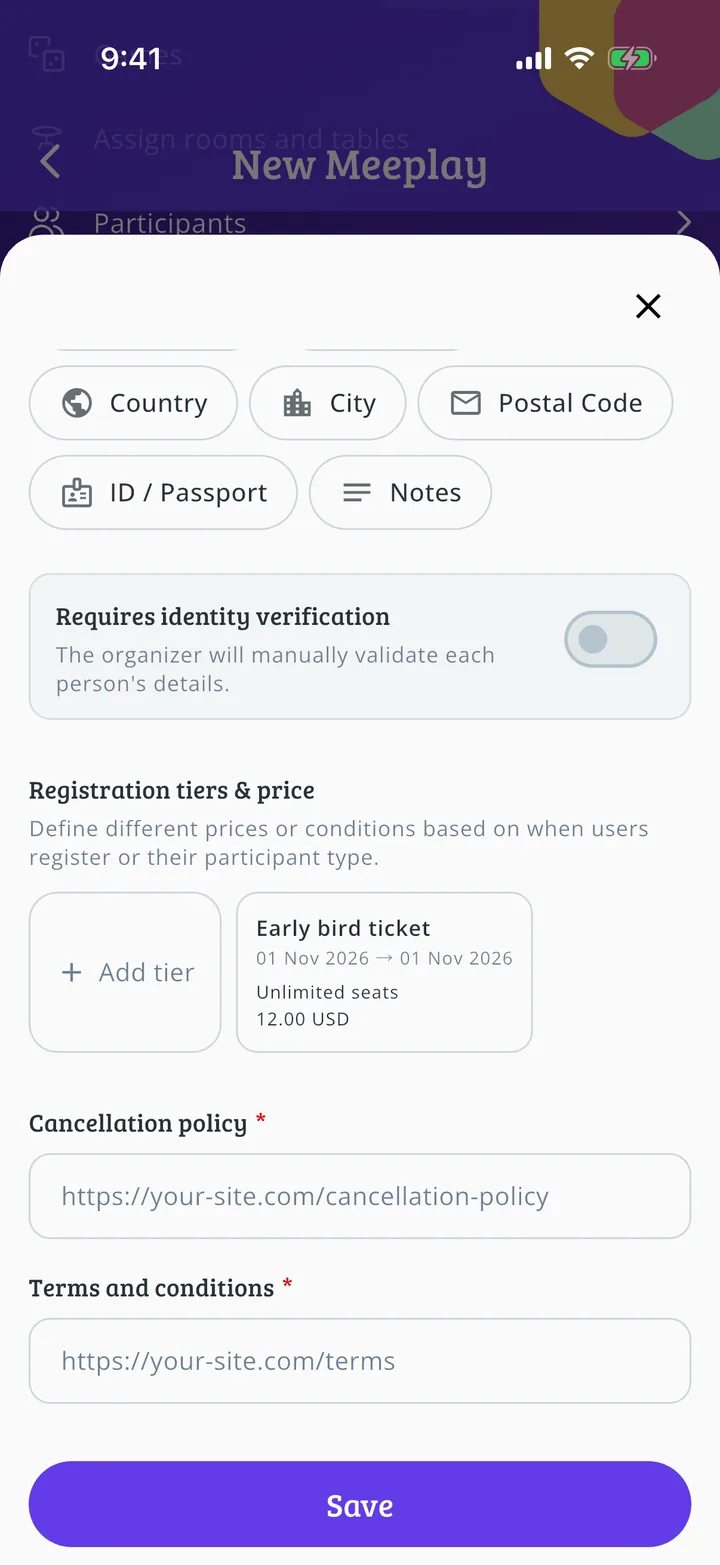
Repeat with the others
The tier appears on the list. Add as many as you need, save the requirements and publish the Meeplay.
All done!
You have finished the guide. If something did not go as in the screenshots, tell us which step you got stuck on and we will help you.