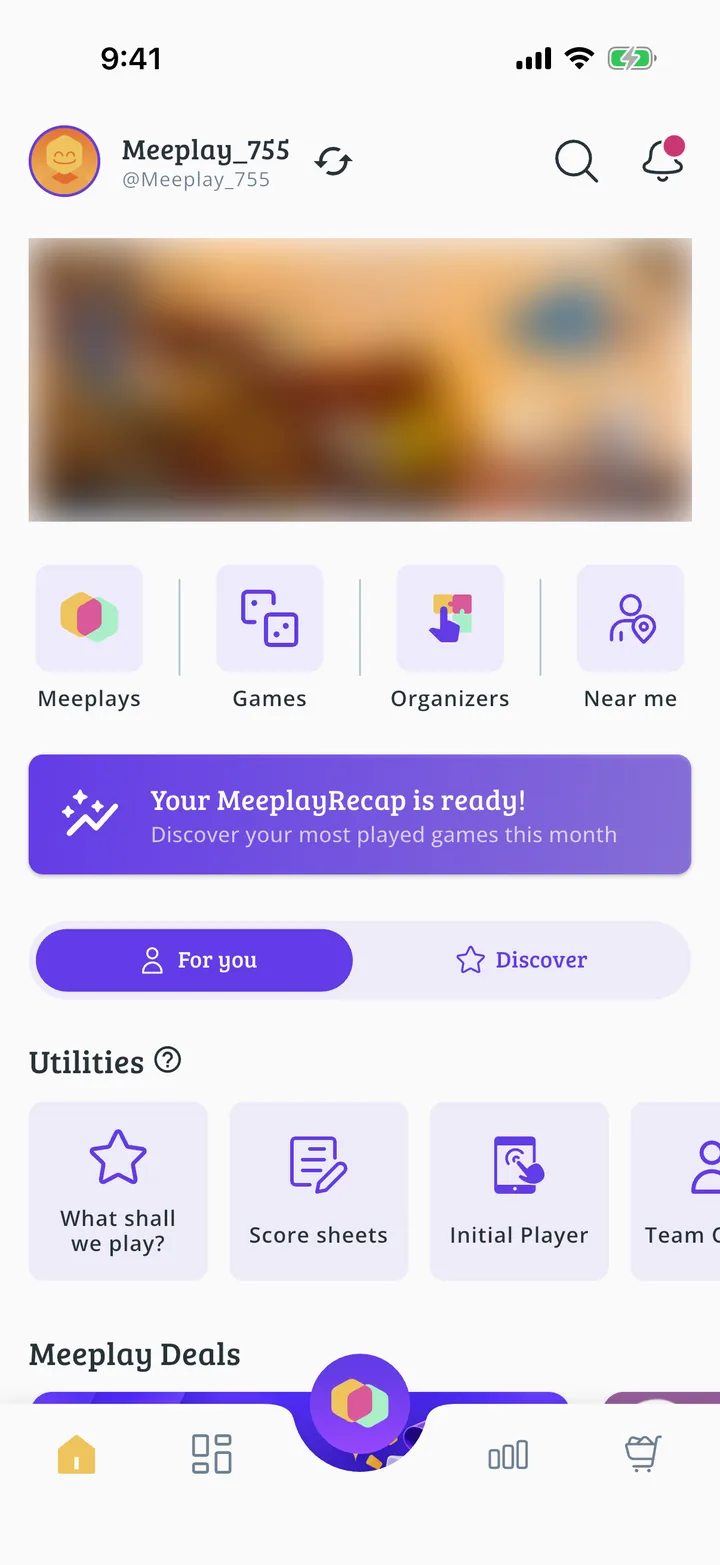
How to switch between your profile and your organization's
Move from your personal profile to the organization you manage, and back, with the two-arrows button.
5 steps with screenshots of the app
If you manage a shop, an association or a publisher, you have two profiles in the app: yours and the organization's. From the organization's you manage it and create Meeplays in its name; from yours you play and sign up as usual. The same button takes you from one to the other.
- Have the Meeplay app installed and be logged in to your account.
- Manage at least one organization. Create it with How to create your organization or ask whoever manages it for access: How to give other people access to manage your organization.
In each screenshot, what you need to tap is outlined in yellow and pointed out with an arrow.
- Step 1 of 5
Tap the two arrows
On the home screen, tap the two arrows button to the right of your name.
- Step 2 of 5
Choose the organization
Under Select an organizer you'll see your own profile and the organizations you manage. Tap the organization.
- Step 3 of 5
You're now on the organization's profile
Its name shows at the top, and below it what you manage: members, rooms, library and events. Meeplays you create from here are in the organization's name, as in How to create Meeplays from your organizer account. To go back to your profile, tap the two arrows again.
- Step 4 of 5
Choose your profile
In the same list, tap your name.
- Step 5 of 5
Back on your profile
You're back on your personal profile, the one for playing and joining Meeplays. You can switch back and forth as often as you like.
All done!
You have finished the guide. If something did not go as in the screenshots, tell us which step you got stuck on and we will help you.