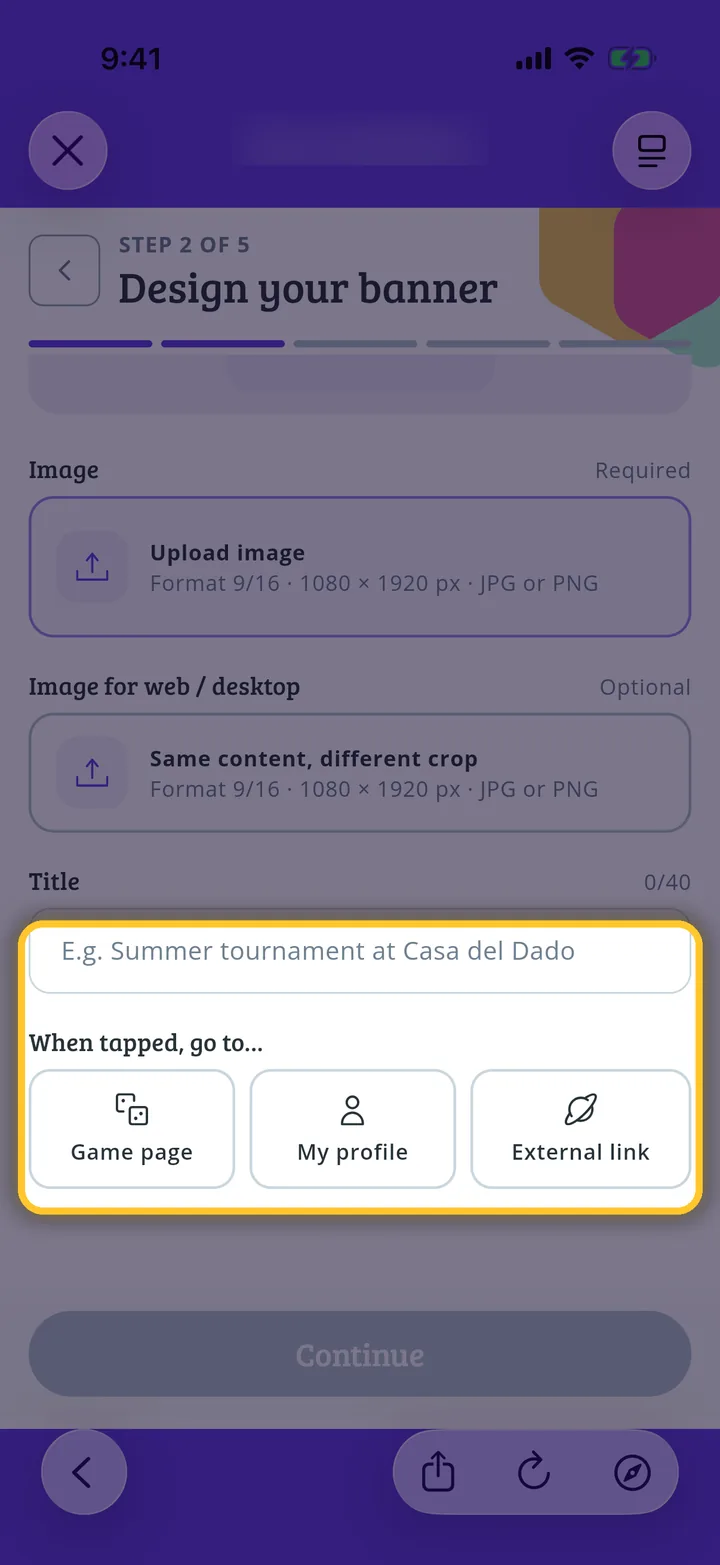
In each screenshot, what you need to tap is outlined in yellow and pointed out with an arrow.
Step 1 of 9
Switch to your organization's profile
On the home screen, tap the two arrows button to the right of your name.
Step 2 of 9
Choose your organization
Under Select an organizer, tap your organization's name.
Step 3 of 9
Go to settings
On your organization's profile, tap Settings.
Step 4 of 9
Open your campaigns
Tap My campaigns.
Step 5 of 9
Create a promotion
Tap New promotion.
Step 6 of 9
Choose the banner
Tap Custom banner and Continue.
Step 7 of 9
Choose where it appears
The promotion wizard opens. Tap the space you prefer and Continue.
Step 8 of 9
Upload your image
At the top you can see how it will look. Tap Upload image and choose one in the format shown.
Step 9 of 9
Write the message
Enter the Title and choose where it leads when tapped. Then choose countries and dates, and check the summary before paying, as in How to promote your games in the Market.
Guide completed
All done!
You have finished the guide. If something did not go as in the screenshots, tell us which step you got stuck on and we will help you.