How to create the rooms and tables of your venue
Add your venue's rooms with their capacity and create their tables in one go, with the seats and shape of each.
9 steps with screenshots of the app
If your organization has its own venue, you can add it to Meeplay: each room with its capacity and tables. This guide creates a room with two four-seat tables.
- Have the Meeplay app installed and be logged in to your account.
- Manage an organization on Meeplay. If you don't have one yet, follow the How to create your organization guide first.
In each screenshot, what you need to tap is outlined in yellow and pointed out with an arrow.
- Step 1 of 9
Switch to your organization's profile
On the home screen, tap the two arrows button to the right of your name.
- Step 2 of 9
Choose your organization
Under Select an organizer, tap your organization's name.
- Step 3 of 9
Open rooms
On the dashboard, tap the Manage rooms icon.
- Step 4 of 9
Create a room
Tap New room. Once you have rooms, you add more with the + button.
- Step 5 of 9
Fill in the details
Type the Room name and the Description, and set the Capacity (number of people) with the − and + buttons. Then tap Create tables.
- Step 6 of 9
Create the tables in one go
Choose how many tables you want, the people per table and, if needed, the shape. Tap Create tables.
- Step 7 of 9
Check and create the room
The buttons on each table let you edit or delete it. When everything is ready, tap Create room.
- Step 8 of 9
Confirm
Tap Create.
- Step 9 of 9
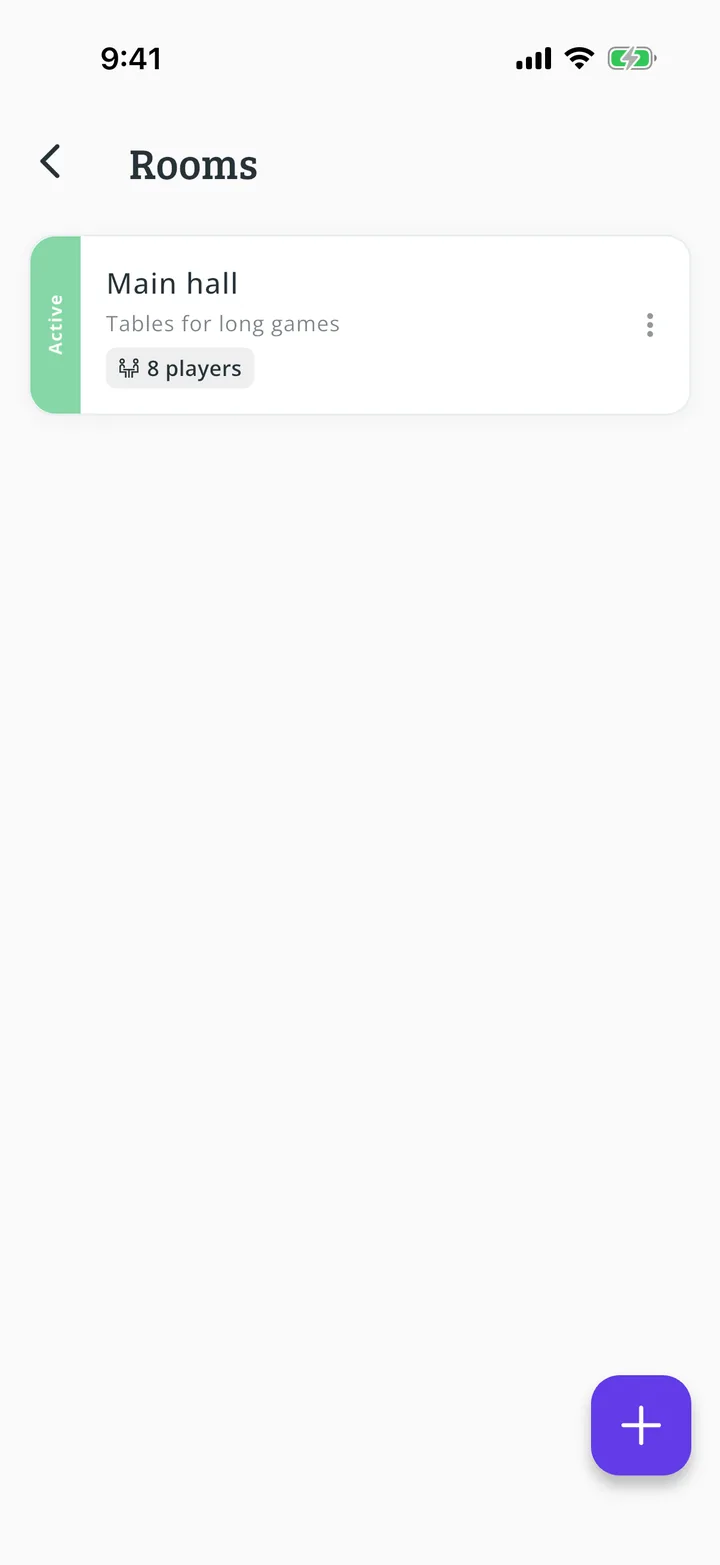
Room created!
The room appears on the list as active. Tap it to edit it, or use the three dots to change its status or delete it.
All done!
You have finished the guide. If something did not go as in the screenshots, tell us which step you got stuck on and we will help you.