How to create awards with voting
Create awards in your Meeplay: choose the voting type, the dates, the categories and the games competing.
15 steps with screenshots of the app
With awards, the people at your event vote for their favourite games by category. You turn them on when creating the Meeplay and set them up right after publishing it.
- Have the Meeplay app installed and be logged in to your account.
- Manage an organization on Meeplay. If you don't have one yet, follow the How to create your organization guide first.
- Have the links to your cancellation policy and terms and conditions ready: they are required as soon as you ask for any detail.
In each screenshot, what you need to tap is outlined in yellow and pointed out with an arrow.
- Step 1 of 15
Switch to your organization's profile
On the home screen, tap the two arrows button to the right of your name.
- Step 2 of 15
Choose your organization
Under Select an organizer, tap your organization's name.
- Step 3 of 15
Open "New Meeplay"
Tap the + button at the bottom and then the New Meeplay icon.
- Step 4 of 15
Turn on the awards
Fill in the Meeplay. Select Awards and tap Publish.
- Step 5 of 15
Confirm
Tap Publish.
- Step 6 of 15
Continue with the setup
Your Meeplay has been created. Tap Done.
- Step 7 of 15
Open the awards
Tap Awards.
- Step 8 of 15
Choose the voting type
Single, Rating or Emoji: tap the one you prefer.
- Step 9 of 15
Continue
Tap Next.
- Step 10 of 15
Title and dates
Enter the title and choose when voting starts and ends with the calendars. Below you have more options, such as requiring location or phone. Tap Next.
- Step 11 of 15
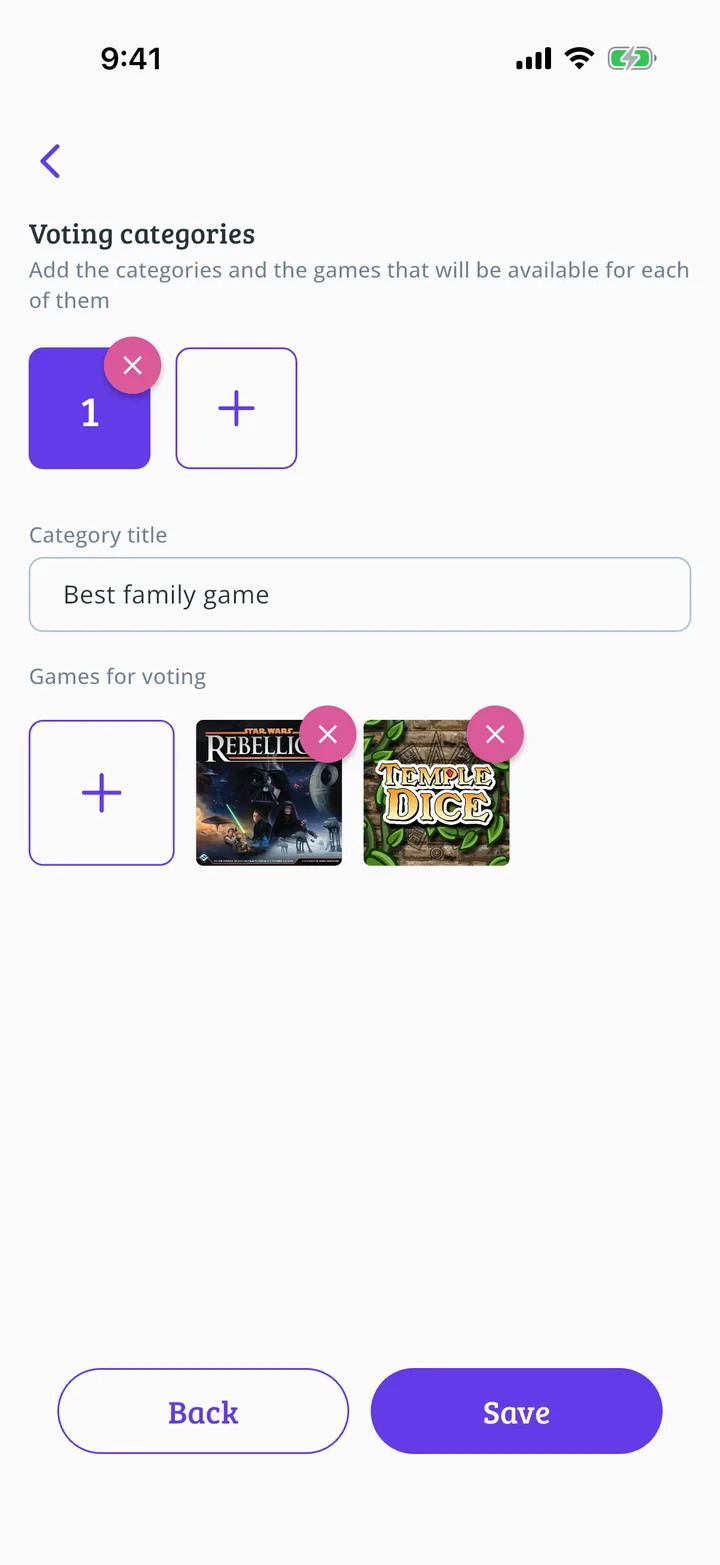
Create a category
Enter its name and tap the + under Games for voting. The + at the top adds more categories.
- Step 12 of 15
Choose the games
Select the games competing and tap the button at the bottom to add them.
- Step 13 of 15
Save
Check the games and tap Save.
- Step 14 of 15
Finish
The awards are now ticked. Tap Save.
- Step 15 of 15
Awards ready
The awards are now set up. Tap Ir al Meeplay. Voting opens on the date you chose.
All done!
You have finished the guide. If something did not go as in the screenshots, tell us which step you got stuck on and we will help you.
Next in «For associations»How to give specific permissions at an event →