How to create an online Meeplay
If you play remotely, mark your Meeplay as online and give the link so people can connect.
5 steps with screenshots of the app
You don't have to be in the same place: a Meeplay can be online. People will see that and have the link to connect.
- Have the Meeplay app installed and be logged in to your account.
In each screenshot, what you need to tap is outlined in yellow and pointed out with an arrow.
- Step 1 of 5
Open the create menu
On the home screen, tap the + button in the middle of the bottom bar.
- Step 2 of 5
Choose "New Meeplay"
Tap the New Meeplay icon.
- Step 3 of 5
Open attendance
Fill in the Meeplay as usual. Under Quick settings, tap Attendance.
- Step 4 of 5
Choose "Online"
Tap Online: Play remotely through an online platform.
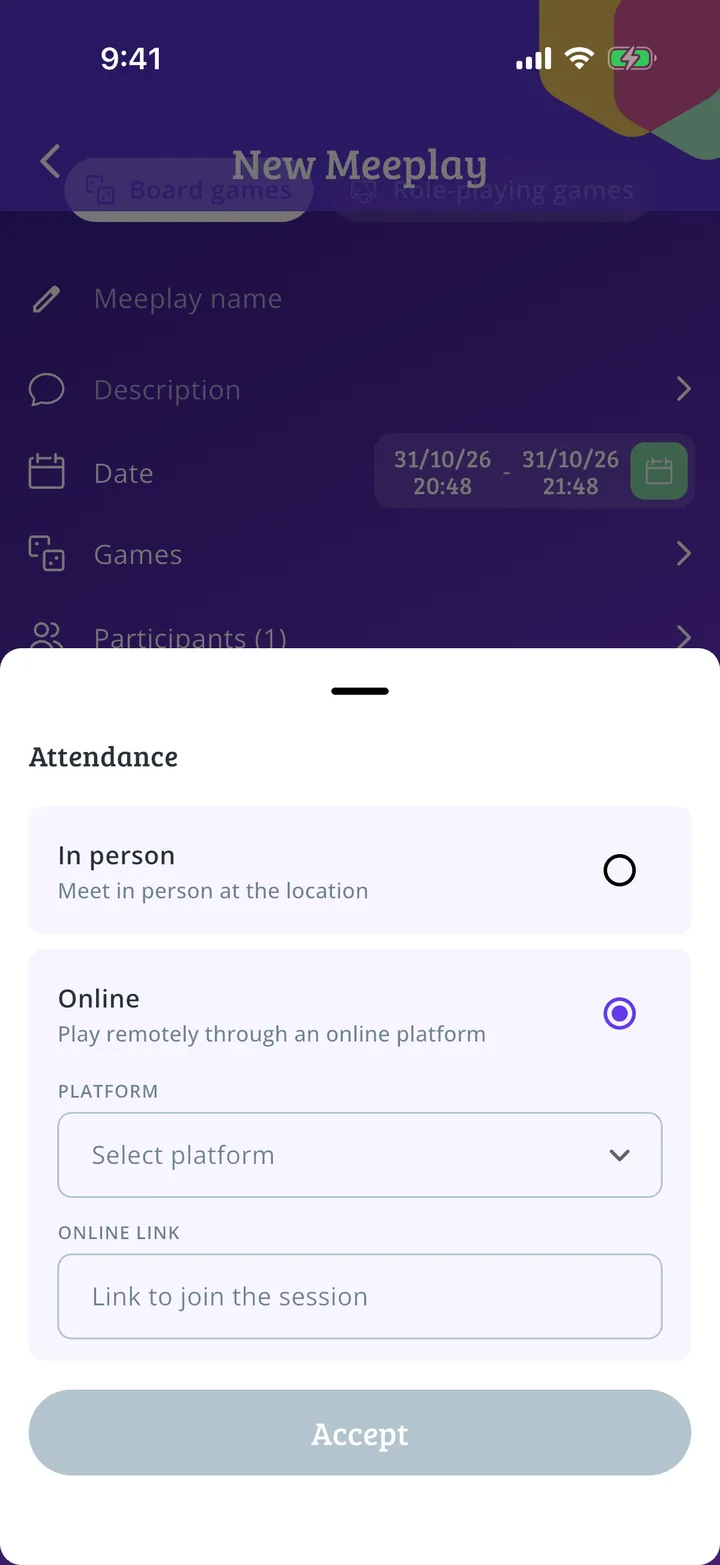
- Step 5 of 5
Add the link
Choose the platform, paste the link and tap Accept. Publish the Meeplay as in How to create your first Meeplay.
All done!
You have finished the guide. If something did not go as in the screenshots, tell us which step you got stuck on and we will help you.
Next in «Create your event»How to edit a Meeplay you already created →