How to create a tournament
Run a tournament from the Meeplay app: game, date, places, format (knockout, league, Swiss…) and scoring system, all the way to publishing it.
17 steps with screenshots of the app
Tournaments are created from your organization's profile. This guide creates a Swiss-format Catan tournament from start to finish; the other formats are set up the same way, with the options that appear when you choose them.
- Have the Meeplay app installed and be logged in to your account.
- Manage an organization on Meeplay. If you don't have one yet, follow the How to create your organization guide first.
- Your organization needs tournaments enabled. If tapping "Create Tournament" shows the plans screen instead of the form, they are not enabled yet.
In each screenshot, what you need to tap is outlined in yellow and pointed out with an arrow.
- Step 1 of 17
Switch to your organization's profile
On the home screen, tap the two arrows button to the right of your name.
- Step 2 of 17
Choose your organization
Under Select an organizer, tap your organization's name.
- Step 3 of 17
Start creating the tournament
On your organization's dashboard, tap Create Tournament in the first steps list. You can also create it from the central + button in the bottom bar.
- Step 4 of 17
Name it and choose the game
Tap Tournament Name and type the name. Then tap Game to choose what will be played.
- Step 5 of 17
Search for the game
Type the game's name in the search box and tap the right one.
- Step 6 of 17
Open the date
With the name and game set, tap the green calendar button to the right of Tournament date.
- Step 7 of 17
Expand the start
Tap the arrow next to Start at to open the calendar.
- Step 8 of 17
Choose the start day and time
Tap the day on the calendar (the arrows at the top change the month) and set the start time by scrolling the wheels.
- Step 9 of 17
Set the end time and confirm
Tap the arrow next to Finish at, set the end time with the wheels and tap Confirm.
- Step 10 of 17
Set the number of places
Tap the Number of places number and type how many people can sign up, or use the − and + buttons.
- Step 11 of 17
Choose the format
Tap Type of competition and choose how the competition will work. In this example, Swiss.
- Step 12 of 17
Adjust the format
Depending on the format, more options appear. For a Swiss tournament, set the Number of rounds and Players per match (4 for Catan). Then tap Points per result.
- Step 13 of 17
Choose how points are scored
Choose Points per result (win, draw or loss) or Points obtained (each game's points).
- Step 14 of 17
Publish the tournament
If you like, review the rules, phase delegation and privacy sections. When it is ready, tap Publish. Save as draft keeps it without publishing it.
- Step 15 of 17
Confirm
The app warns you that the tournament will be visible to everyone and that your followers will be notified. Tap Publish.
- Step 16 of 17
Tournament created!
Tap Done.
- Step 17 of 17
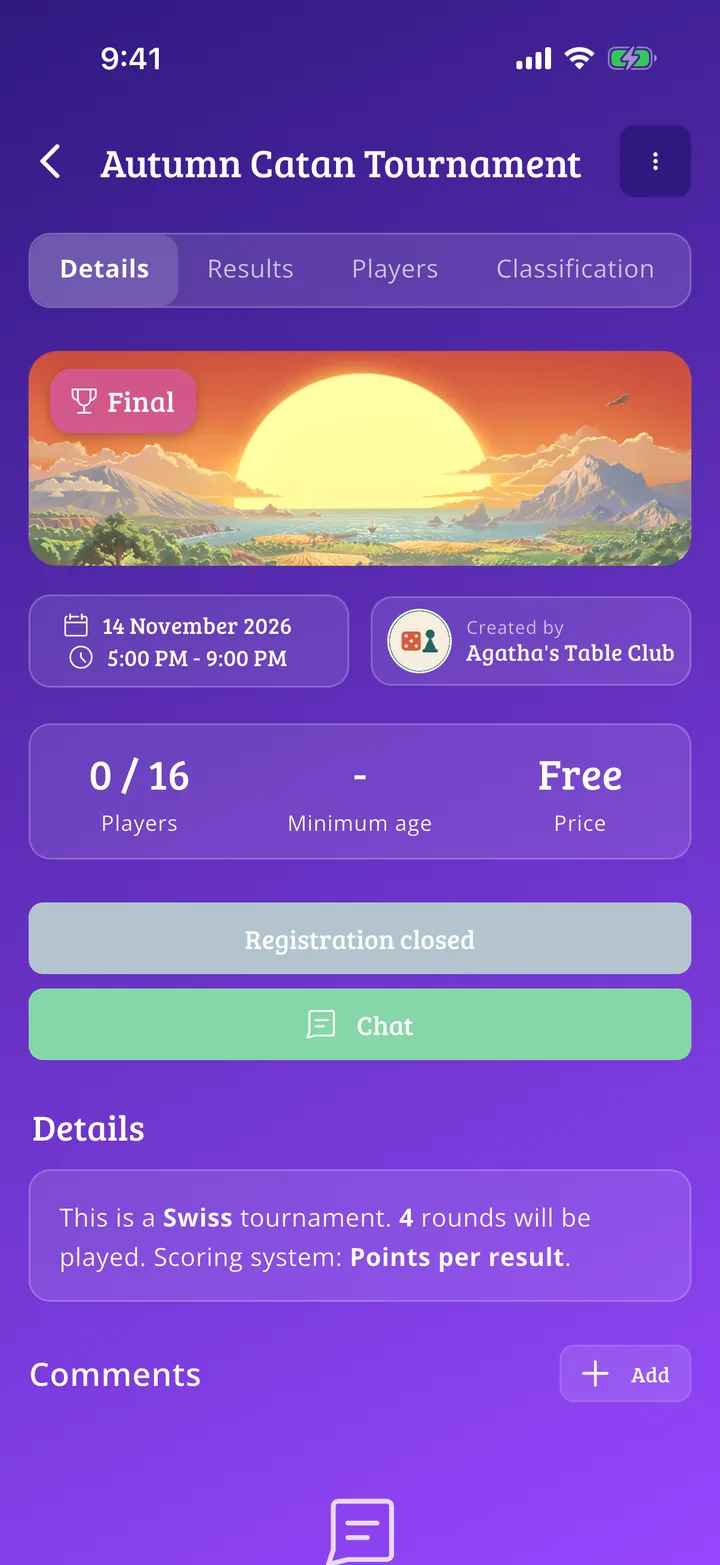
Your tournament page
Your tournament page is ready, with its details, results, players and standings tabs.
All done!
You have finished the guide. If something did not go as in the screenshots, tell us which step you got stuck on and we will help you.