How to create a challenge in a Meeplay
Place QR codes around your event and challenge people to scan them all: create the challenge, add the checkpoints and share their QR codes.
13 steps with screenshots of the app
A challenge invites people to explore your event: each game or checkpoint has its own QR code, and whoever scans them all completes it. This guide creates a challenge with two checkpoints inside a Meeplay.
- Have the Meeplay app installed and be logged in to your account.
- Manage an organization on Meeplay. If you don't have one yet, follow the How to create your organization guide first.
- Have the Meeplay created: see How to create Meeplays from your organizer account.
- Have challenges available in that Meeplay. If something needs to be purchased, the app tells you when you create the challenge.
In each screenshot, what you need to tap is outlined in yellow and pointed out with an arrow.
- Step 1 of 13
Switch to your organization's profile
On the home screen, tap the two arrows button to the right of your name.
- Step 2 of 13
Choose your organization
Under Select an organizer, tap your organization's name.
- Step 3 of 13
Open the agenda
Tap the calendar on the bottom bar.
- Step 4 of 13
Open the Meeplay
In list view, tap the Meeplay where you want to create the challenge.
- Step 5 of 13
Open challenges
Scroll down the page and, next to Challenges, tap Manage.
- Step 6 of 13
Create a new one
The Meeplay's challenges are listed here. Tap New challenge.
- Step 7 of 13
Choose the type
Games: You pick games from the catalogue with their publisher and each game has its own QR. Custom: You create checkpoints (stands, areas, activities) and each one has its own QR. The type can't be changed after creating the challenge. Choose Custom and tap Continue.
- Step 8 of 13
Title and description
Type the Title and explain what to do in the Description. The Dates are optional: outside that range, nobody can scan.
- Step 9 of 13
Fill in the first checkpoint
Scroll down to Checkpoints. Type the name and, if you like, the location, a picture and how to find it. Under Want a special achievement? you can write to us so that people who complete it get an achievement.
- Step 10 of 13
Add the rest and create the challenge
Add checkpoint adds more points. When they are all there, tap Create challenge.
- Step 11 of 13
The challenge dashboard
Here you can see who has completed it, edit it and create a raffle among those who complete it. To get the codes, tap See QR.
- Step 12 of 13
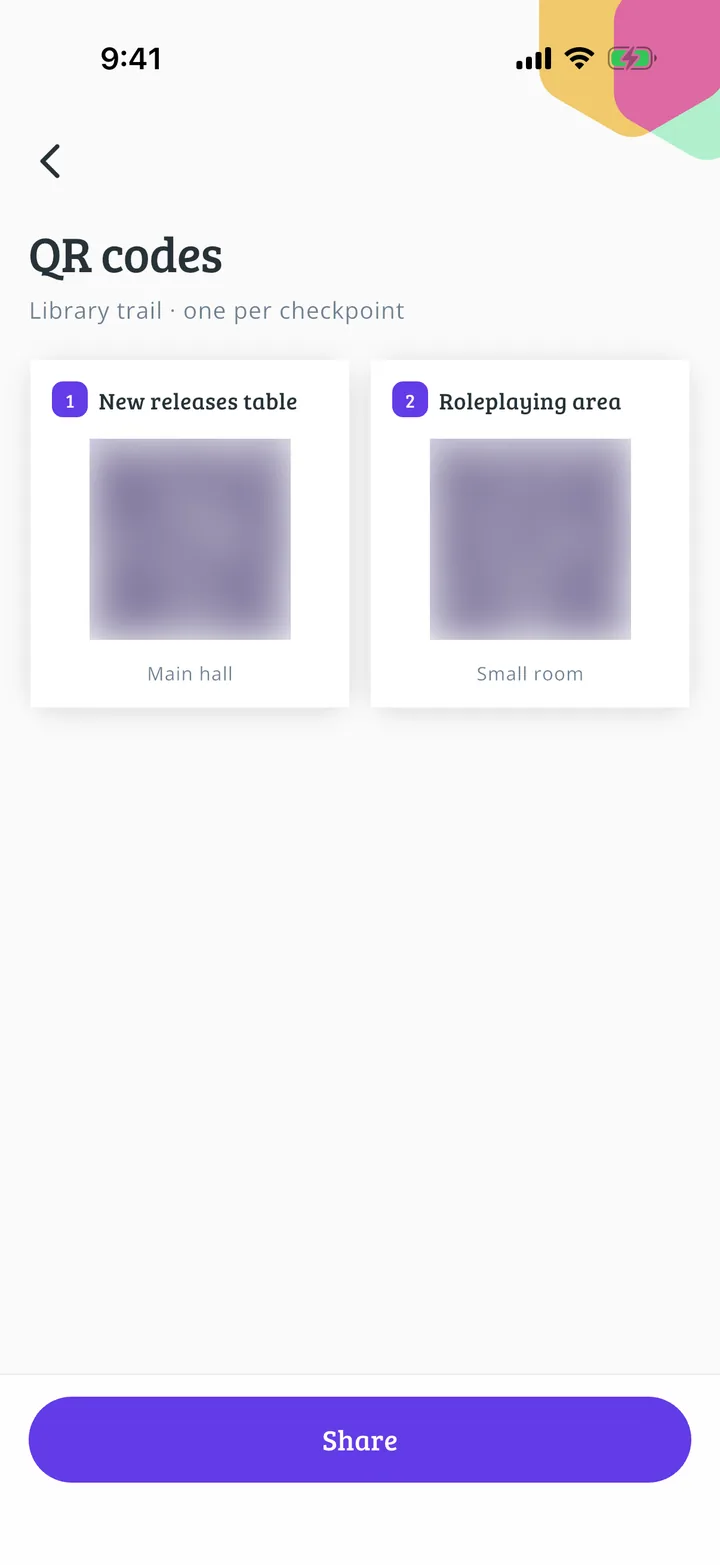
Your QR codes
Each point has its own QR code. Tap Share.
- Step 13 of 13
Share and print them
Choose QR only or Full card, print them and place them at each point. People scan them with their phones and, once they have them all, complete the challenge.
All done!
You have finished the guide. If something did not go as in the screenshots, tell us which step you got stuck on and we will help you.