Before you start
8 steps with screenshots of the app
Not every play is everyone against everyone. You can set the teams or mark that you played cooperatively.
- Have the Meeplay app installed and be logged in to your account.
In each screenshot, what you need to tap is outlined in yellow and pointed out with an arrow.
Step 1 of 8
Open your stats
Tap the bars button on the bottom bar.
Step 2 of 8
Go to your games
Tap Logged plays.
Step 3 of 8
Find the game
They are sorted by date. Tap the three dots button of the game you want to fix.
Step 4 of 8
Open editing
Tap Edit. You can also set teams when logging a play, from the same form.
Step 5 of 8
Find the team column
Next to each person there is the Team box. Tap it. If you all played together rather than in teams, turn on Cooperative game.
Step 6 of 8
Choose their team
Tap that person's team.
Step 7 of 8
Repeat with the others
Do the same with each person and tap Save.
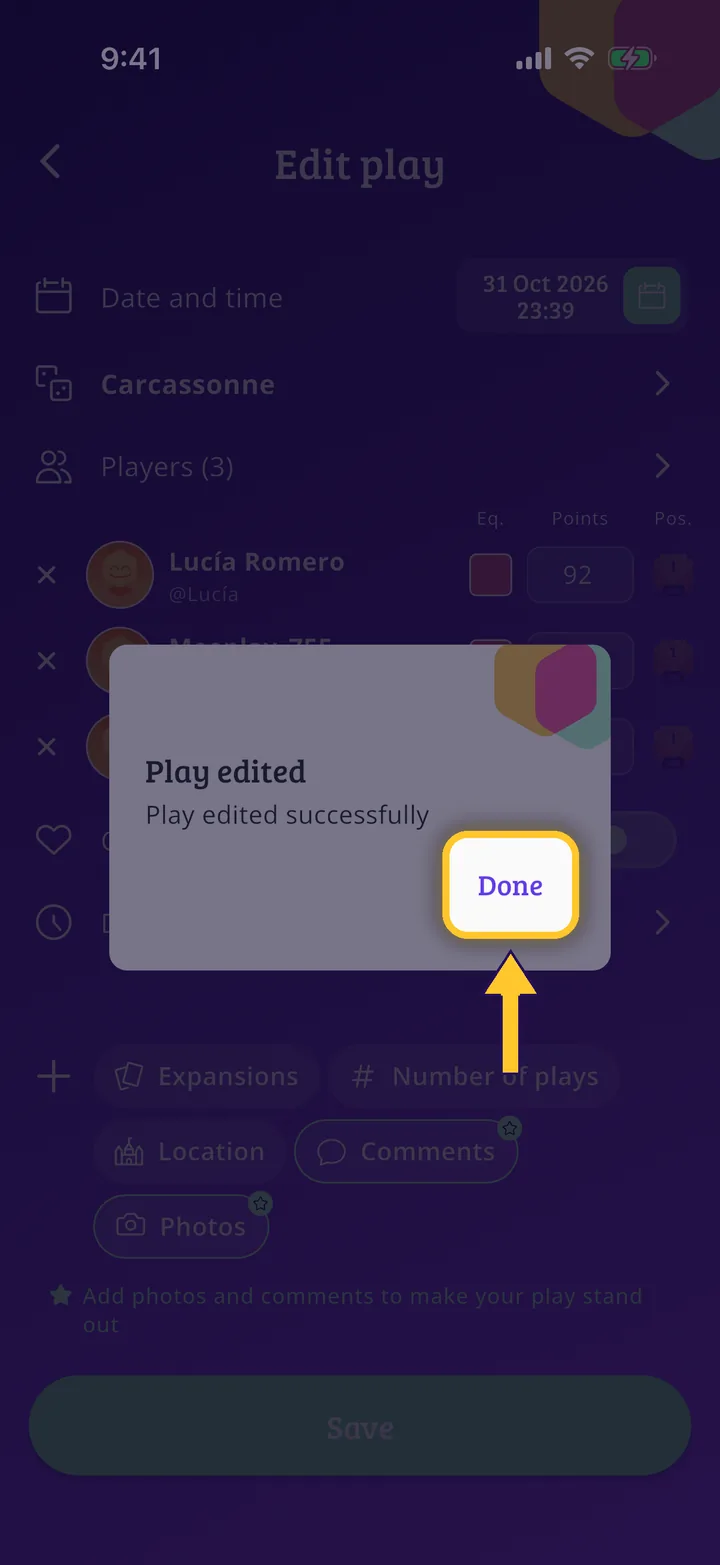
Step 8 of 8
Play saved
Tap Done. The play is saved with its teams.
Guide completed
All done!
You have finished the guide. If something did not go as in the screenshots, tell us which step you got stuck on and we will help you.