How to sync your account with BoardGameGeek
Connect your BoardGameGeek account with Meeplay to bring in your collection, ratings and plays.
7 steps with screenshots of the app
If you already use BoardGameGeek (BGG), you don't need to start from scratch: connect your account and Meeplay will bring in your collection, ratings and plays. To see what data moves in each direction, see What Meeplay syncs with BoardGameGeek.
- Have the Meeplay app installed and be logged in to your account.
- Have a BoardGameGeek account, if you want to connect it.
In each screenshot, what you need to tap is outlined in yellow and pointed out with an arrow.
- Step 1 of 7
Go to your profile
On the home screen, tap your name or picture in the top left corner.
- Step 2 of 7
Open settings
On your profile, tap the gear button to the right of Badges.
- Step 3 of 7
Open sync
In Settings, tap BGG sync.
- Step 4 of 7
Start connecting
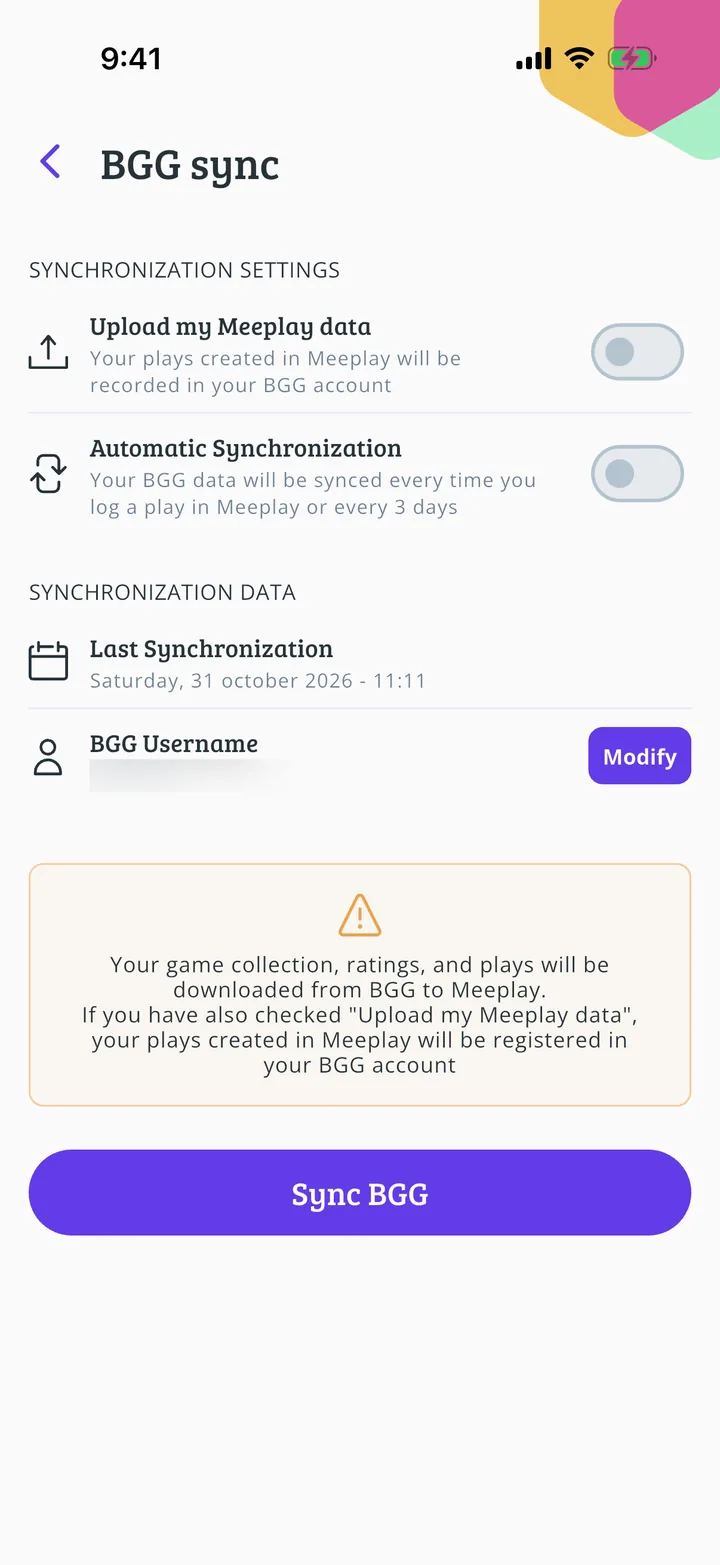
First decide whether you want Upload my Meeplay data and Automatic Synchronization; you can change this later. Tap Sync BGG.
- Step 5 of 7
Enter your BGG details
Enter your BoardGameGeek Username and Password, not your Meeplay ones. Tap Sync.
- Step 6 of 7
Confirm
This operation will be performed in the background as it may take several minutes. We will notify you when the synchronization is complete. Accept the notice and you can keep using the app.
- Step 7 of 7
Account connected!
When it finishes, you'll see your BGG Username and the Last Synchronization here. If you change your BGG password, enter it again with Modify.
All done!
You have finished the guide. If something did not go as in the screenshots, tell us which step you got stuck on and we will help you.