When the flea market closes it's time to settle up: give each person the money for what was sold and return what wasn't. The app works out each stall's figures and helps you not to forget anyone.
Have the Meeplay app installed and be logged in to your account.
In each screenshot, what you need to tap is outlined in yellow and pointed out with an arrow.
Step 1 of 12
Switch to your organization's profile
On the home screen, tap the two arrows button to the right of your name.
Step 2 of 12
Choose your organization
Under Select an organizer, tap your organization's name.
Step 3 of 12
Open the agenda
Tap the calendar on the bottom bar.
Step 4 of 12
Open the Meeplay
In list view, tap the Meeplay that has the flea market.
Step 5 of 12
Open the flea market
On the page, tap Flea market.
Step 6 of 12
Open the panel
Tap Management panel.
Step 7 of 12
Open "Settlements"
Scroll down the panel and tap Settlements.
Step 8 of 12
Choose a stall
At the top you can see how many stalls are left and how much money is still to be handed over. The stalls appear when you close the flea market. Tap one.
Step 9 of 12
Check the figures and generate it
This is a Live preview: what was received, what was sold, the commission and what has to be handed over. If it is correct, tap Generate settlement.
Step 10 of 12
Hand over the money
The settlement has now been generated. When you hand over the money, tap Money paid. If something needs correcting, use + Adjustment.
Step 11 of 12
Return what hasn't sold
When you return the games, tap Items returned.
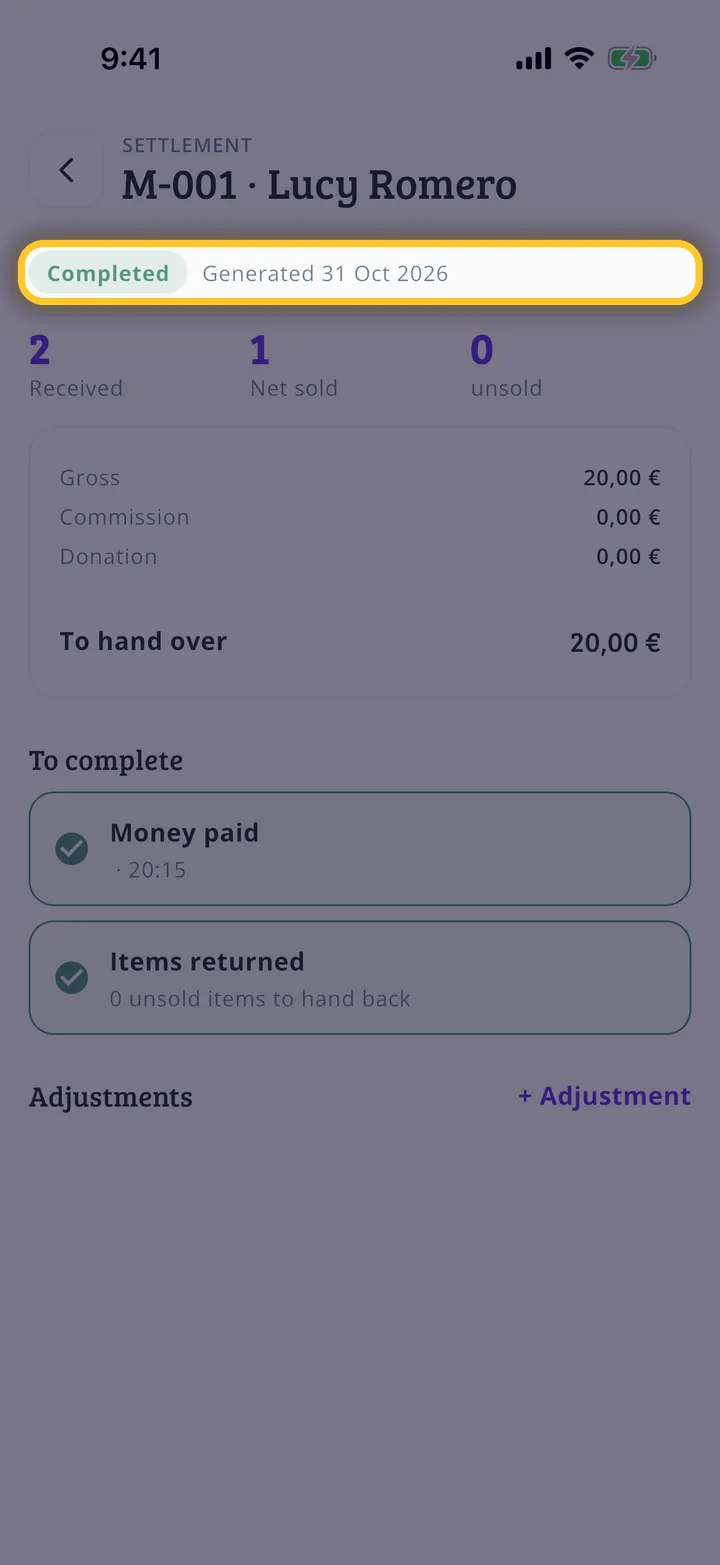
Step 12 of 12
Settlement completed
With both ticks, the settlement becomes Completed. Repeat with the other stalls.
Guide completed
All done!
You have finished the guide. If something did not go as in the screenshots, tell us which step you got stuck on and we will help you.