How to set up your Meeplay's interactive map
Upload the venue's floor plan and draw the stands and areas on it, so people can find what they're looking for during the event.
14 steps with screenshots of the app
The interactive map helps people find their way around an event: you upload a picture of each floor and draw the stands and areas on top. This guide creates a floor with one stand.
- Have the Meeplay app installed and be logged in to your account.
- Manage an organization on Meeplay. If you don't have one yet, follow the How to create your organization guide first.
- Have the Meeplay created: see How to create Meeplays from your organizer account.
- Have a picture of the venue's floor plan on your phone.
In each screenshot, what you need to tap is outlined in yellow and pointed out with an arrow.
- Step 1 of 14
Switch to your organization's profile
On the home screen, tap the two arrows button to the right of your name.
- Step 2 of 14
Choose your organization
Under Select an organizer, tap your organization's name.
- Step 3 of 14
Open the agenda
Tap the calendar on the bottom bar.
- Step 4 of 14
Open the Meeplay
In list view, tap the Meeplay you want to add the map to.
- Step 5 of 14
Open the map
On the page, tap Interactive map.
- Step 6 of 14
Add a floor
Add a map for each floor of the venue. Edit it to place the stands. Tap the + button.
- Step 7 of 14
Choose the floor plan picture
Type the floor's Name, tap the Floor plan image box and choose Choose image. Select the floor plan picture and confirm.
- Step 8 of 14
Create the floor
If the venue has several, adjust the Floor number. Tap Create.
- Step 9 of 14
Open it for editing
The floor is now on the list, with no stands. Tap Edit. If there are more floors, add them with the + and repeat these steps.
- Step 10 of 14
Start drawing
Tap Draw.
- Step 11 of 14
Draw the stand
Drag your finger over the map, from one corner to the opposite one, to mark the space for the stand or area.
- Step 12 of 14
Name it
Type the Name. If the stand already exists, search for it at the top to add this space to it.
- Step 13 of 14
Fill in the details and create
If you like, add the Subtitle, Type, Schedule, Organizer, Image and the activities that take place there. Tap Create.
- Step 14 of 14
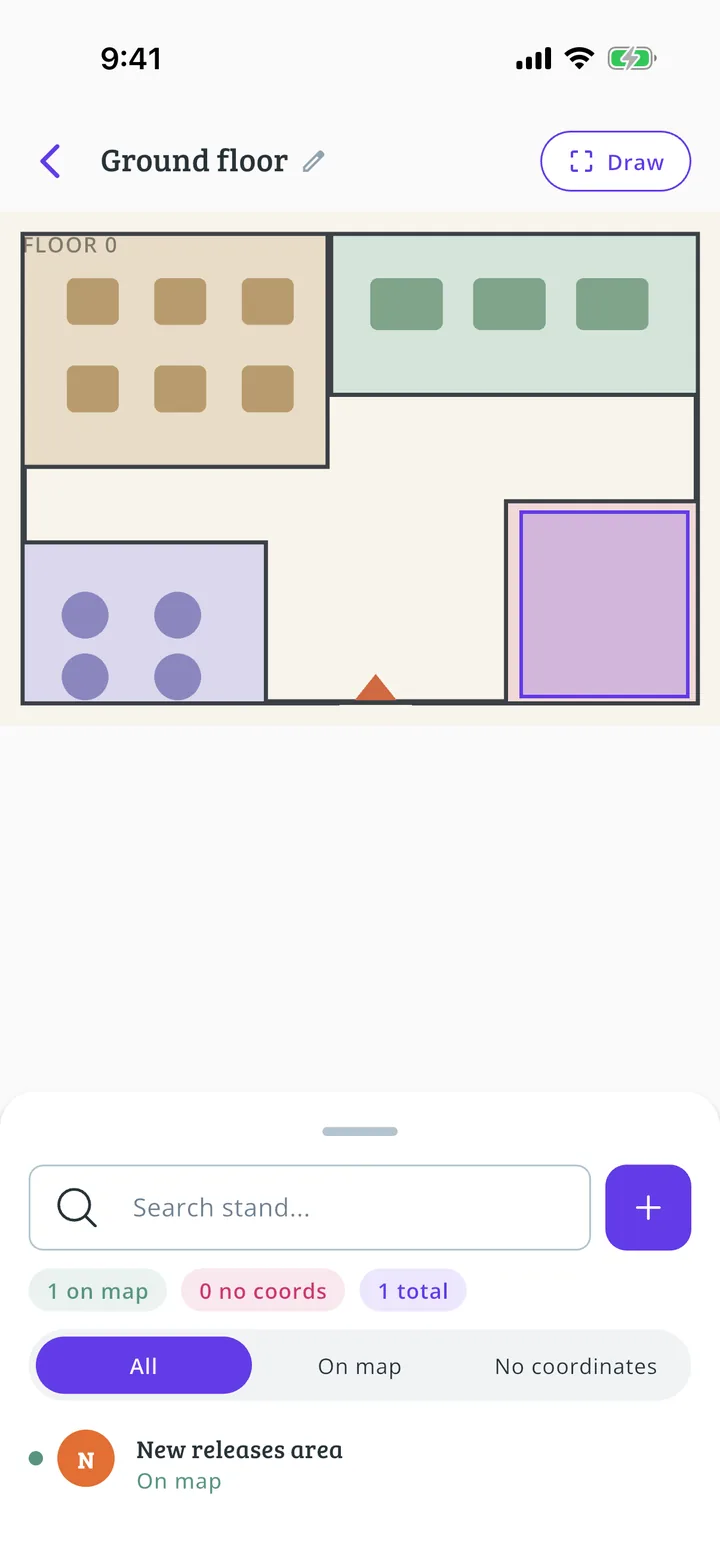
Stand placed!
The stand appears on the map and in the list below. Repeat with Draw until you have them all. To see the result, follow How attendees see the map.
All done!
You have finished the guide. If something did not go as in the screenshots, tell us which step you got stuck on and we will help you.
Next in «Create your event»How to create a tournament →