How to manage a Meeplay's waitlist
See who's waiting for a place in your Meeplay, change the order, give someone a place even when it's full, or take them off the list.
9 steps with screenshots of the app
When your Meeplay fills up, people can join the waitlist. From the participants you see that queue and decide: change the order, give someone a place or take them off the list.
- Have the Meeplay app installed and be logged in to your account.
- Run the Meeplay and have people on its waitlist. This is how they join: How to join a Meeplay's waiting list.
In each screenshot, what you need to tap is outlined in yellow and pointed out with an arrow.
- Step 1 of 9
Open your Meeplay
On the home screen, under Mis eventos, tap your Meeplay.
- Step 2 of 9
Go to the participants
Scroll down to the participants and tap Edit.
- Step 3 of 9
Open the waitlist
Tap Waitlist.
- Step 4 of 9
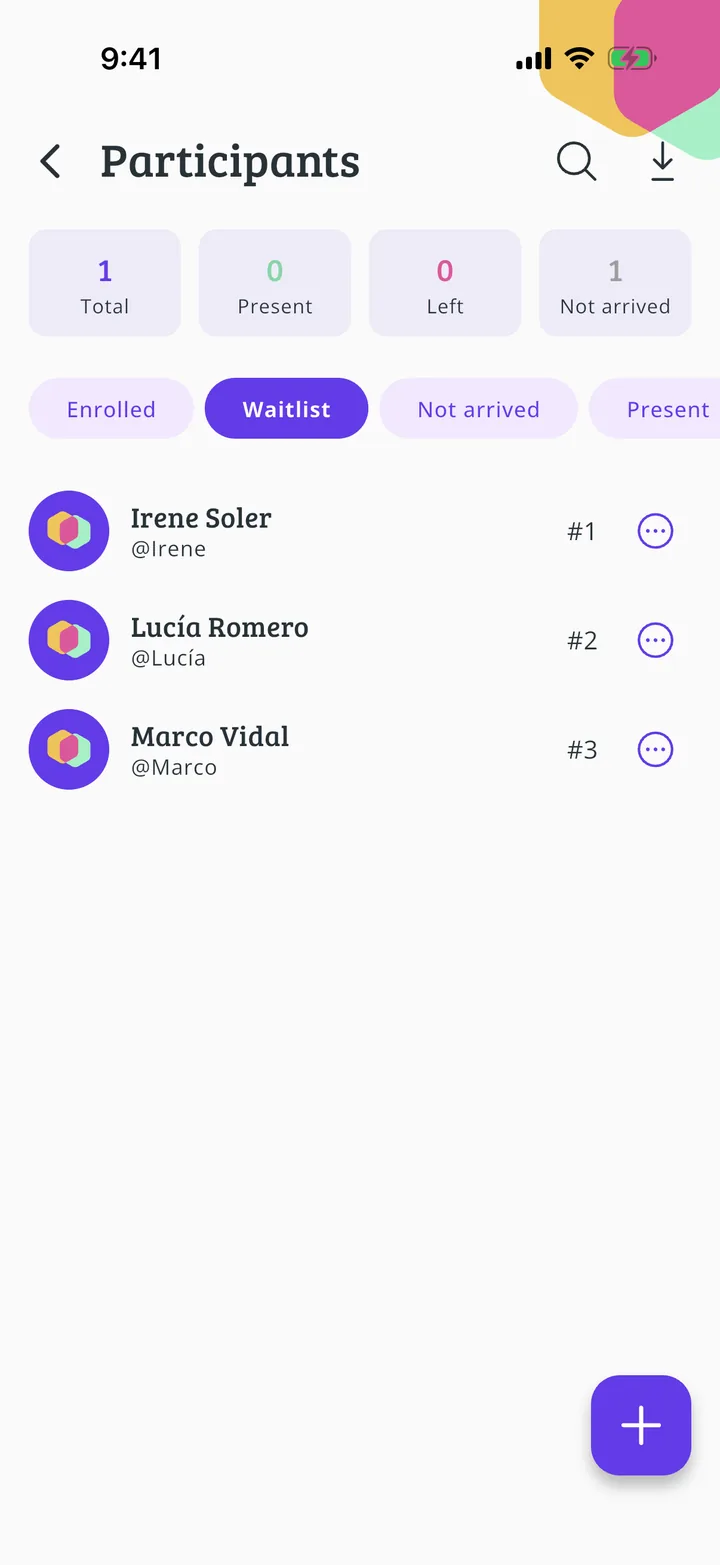
Who's waiting and in what order
Each person shows their place in the queue. When someone gives up their place, the first person on the list gets in automatically and the app lets both of you know. To change anything, tap that person's three dots.
- Step 5 of 9
Choose what to do
Promote to enrolled gives them a place right away, even if the Meeplay is full. Remove from event takes them off the list. Here, to change the order, tap Move waitlist position.
- Step 6 of 9
Drag them to their new place
Drag the person by the two lines to the place you want.
- Step 7 of 9
Save the order
In this example they move to first place. Tap Save.
- Step 8 of 9
Confirm
Tap Accept.
- Step 9 of 9
New order
The list now has the new order: the next place that frees up goes to whoever is first.
All done!
You have finished the guide. If something did not go as in the screenshots, tell us which step you got stuck on and we will help you.