How to manage the players you created
Review the players you created for people without an account, rename them or merge two that are the same person.
6 steps with screenshots of the app
When you add people without an account, you create players that stay saved. From here you review them, see each one's games and fix them.
- Have the Meeplay app installed and be logged in to your account.
- Have created a player: see How to add people who don't use Meeplay.
In each screenshot, what you need to tap is outlined in yellow and pointed out with an arrow.
- Step 1 of 6
Open your profile
On the home screen, tap your name at the top left.
- Step 2 of 6
Go to "Settings"
Tap Settings.
- Step 3 of 6
Open "Manage profile"
Tap Manage profile.
- Step 4 of 6
Choose "Created players"
Tap Created players.
- Step 5 of 6
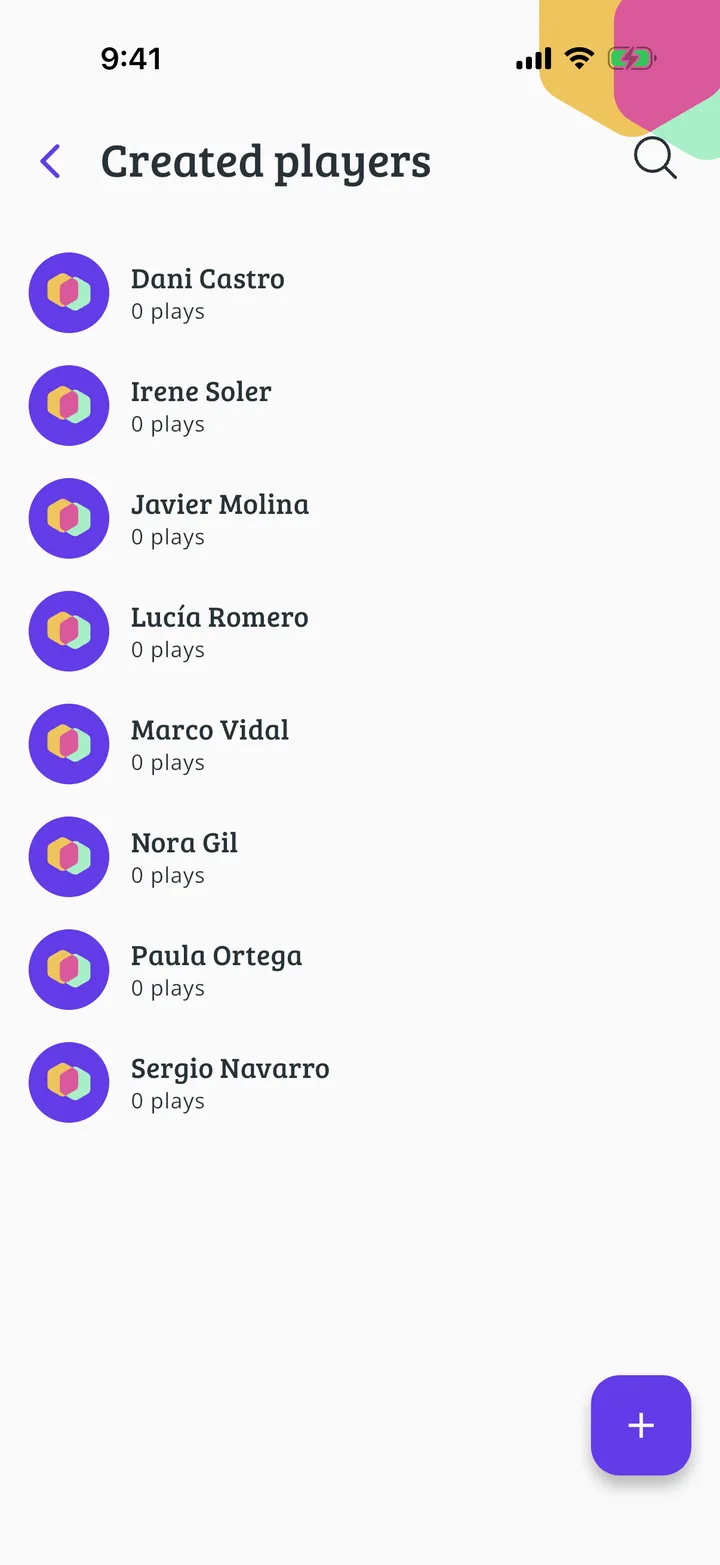
Your players
They are all here, with their games. Tap one to open it.
- Step 6 of 6
Edit or merge
Edit changes the name. Merge joins it to another player if they are the same person: their games move to the other one and this one is deleted.
All done!
You have finished the guide. If something did not go as in the screenshots, tell us which step you got stuck on and we will help you.
Next in «For players»Table tools: scores, dice, teams and clock →