Table tools: scores, dice, teams and clock
Meeplay includes tools for playing at the table: score sheets, starting player, teams, score counter, dice and clock.
7 steps with screenshots of the app
On the home screen there is a row of tools to use during a game. You don't need to prepare anything: open them whenever you need them.
- Have the Meeplay app installed and be logged in to your account.
In each screenshot, what you need to tap is outlined in yellow and pointed out with an arrow.
- Step 1 of 7
Find the tools
On the home screen, go to Utilities and swipe the row sideways to see them all. To change the order, press and hold one and move it.
- Step 2 of 7
Score sheets
Score sheets brings together sheets for scoring a specific game. Search for the game or tap one on the list.
- Step 3 of 7
Starting player
Initial Player picks who goes first: everyone puts a finger on the screen and holds it until the countdown ends.
- Step 4 of 7
Team creator
Team Creator splits people into teams. Say how many people are playing and how many teams you want, and tap Start.
- Step 5 of 7
Score counter
Score Tracker keeps each person's score. Choose how many of you are playing and the starting score, and tap Start.
- Step 6 of 7
Roll dice
Dice Roller rolls dice for you. Choose the dice, add a modifier if you like and tap Roll dice.
- Step 7 of 7
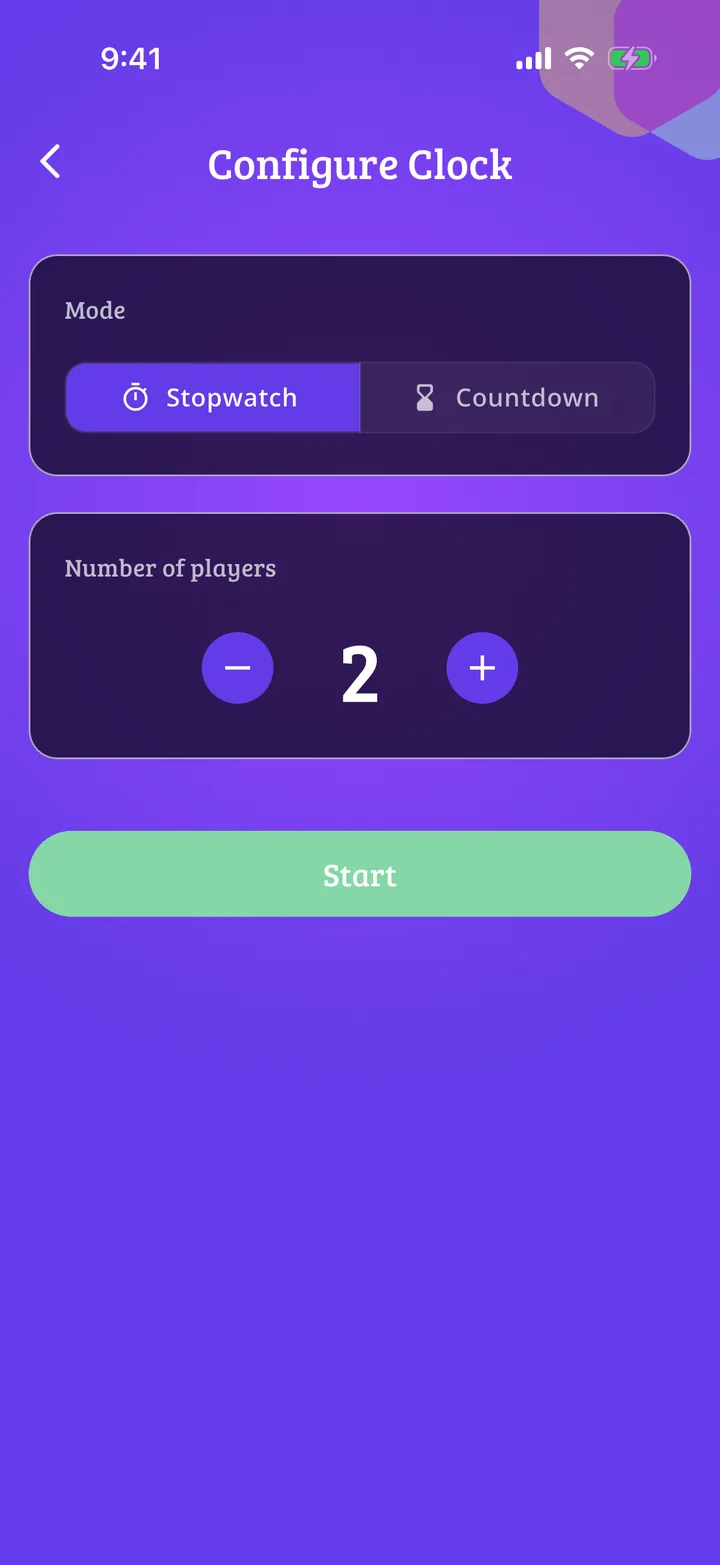
Turn clock
Turn Clock times each turn. Choose Stopwatch or Countdown, say how many of you are playing and tap Start.
All done!
You have finished the guide. If something did not go as in the screenshots, tell us which step you got stuck on and we will help you.
Next in «For players»How to see your stats for a specific game →