How to manage your venue's bookings
See each day's bookings, change their status, add internal notes and create bookings by hand.
5 steps with screenshots of the app
When your organization has bookings open, the panel shows who is coming each day and lets you confirm, cancel or mark arrivals.
- Have the Meeplay app installed and be logged in to your account.
- Manage an organization on Meeplay. If you don't have one yet, follow the How to create your organization guide first.
In each screenshot, what you need to tap is outlined in yellow and pointed out with an arrow.
- Step 1 of 5
Switch to your organization's profile
On the home screen, tap the two arrows button to the right of your name.
- Step 2 of 5
Choose your organization
Under Select an organizer, tap your organization's name.
- Step 3 of 5
Open the bookings panel
On your dashboard, scroll to Upcoming bookings and tap View booking panel.
- Step 4 of 5
See the day's bookings
Choose the day at the top and filter by status. Tap a booking's status to change it, or the booking to open it. The + creates one by hand.
- Step 5 of 5
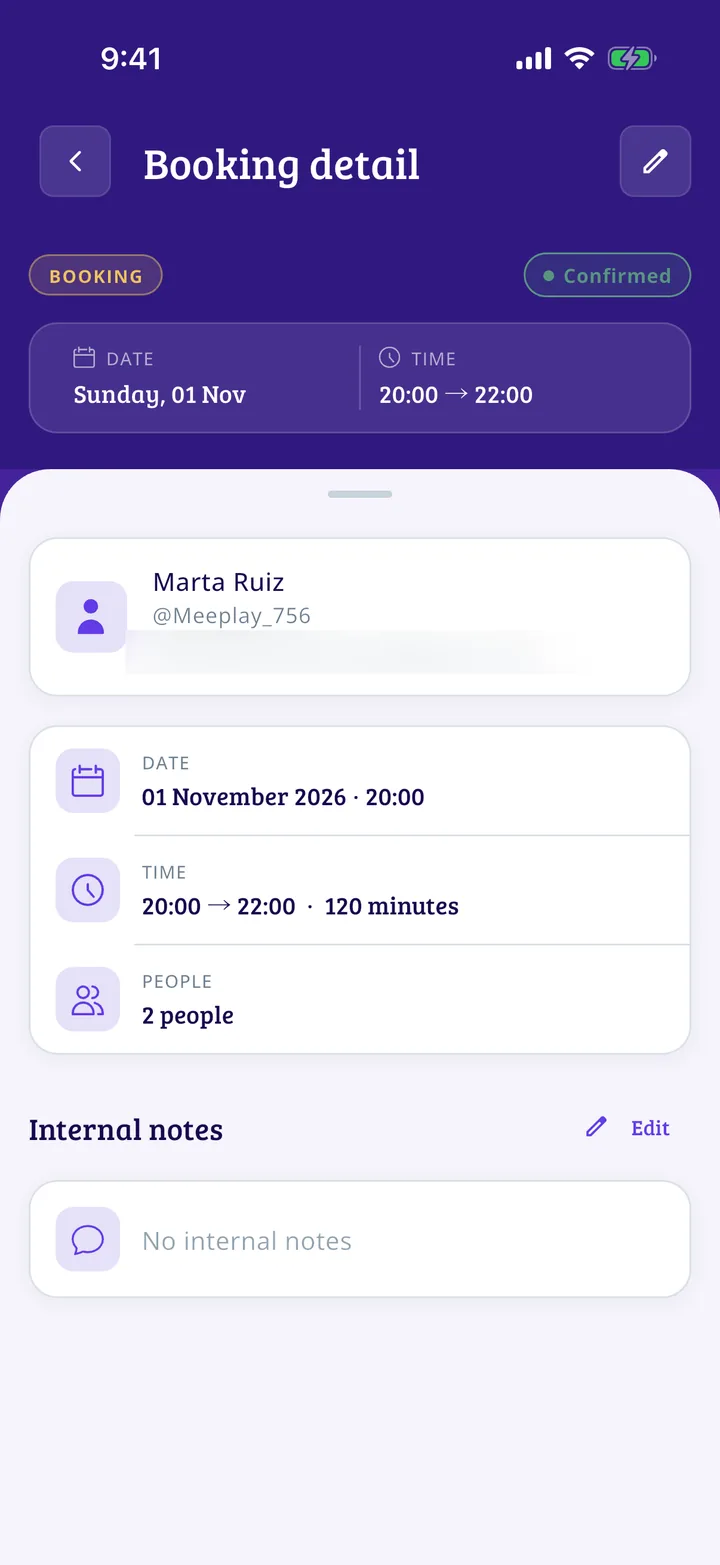
Check the details
Here you have the date, contact details and number of people. Internal notes lets you write down anything you need; only your team sees it.
All done!
You have finished the guide. If something did not go as in the screenshots, tell us which step you got stuck on and we will help you.
Next in «For associations»Recurring Meeplays: how to schedule them automatically →