Help · Settings and notifications
Your notifications: where to see them and what to do with them
Check your notifications and answer requests directly from the notification inbox.
Before you start
2 steps with screenshots of the app
The bell on the home screen brings together all your notifications: requests, messages, badges and more.
- Have the Meeplay app installed and be logged in to your account.
In each screenshot, what you need to tap is outlined in yellow and pointed out with an arrow.
- Step 1 of 2
Open the bell
On the home screen, tap the bell at the top right.
- Step 2 of 2
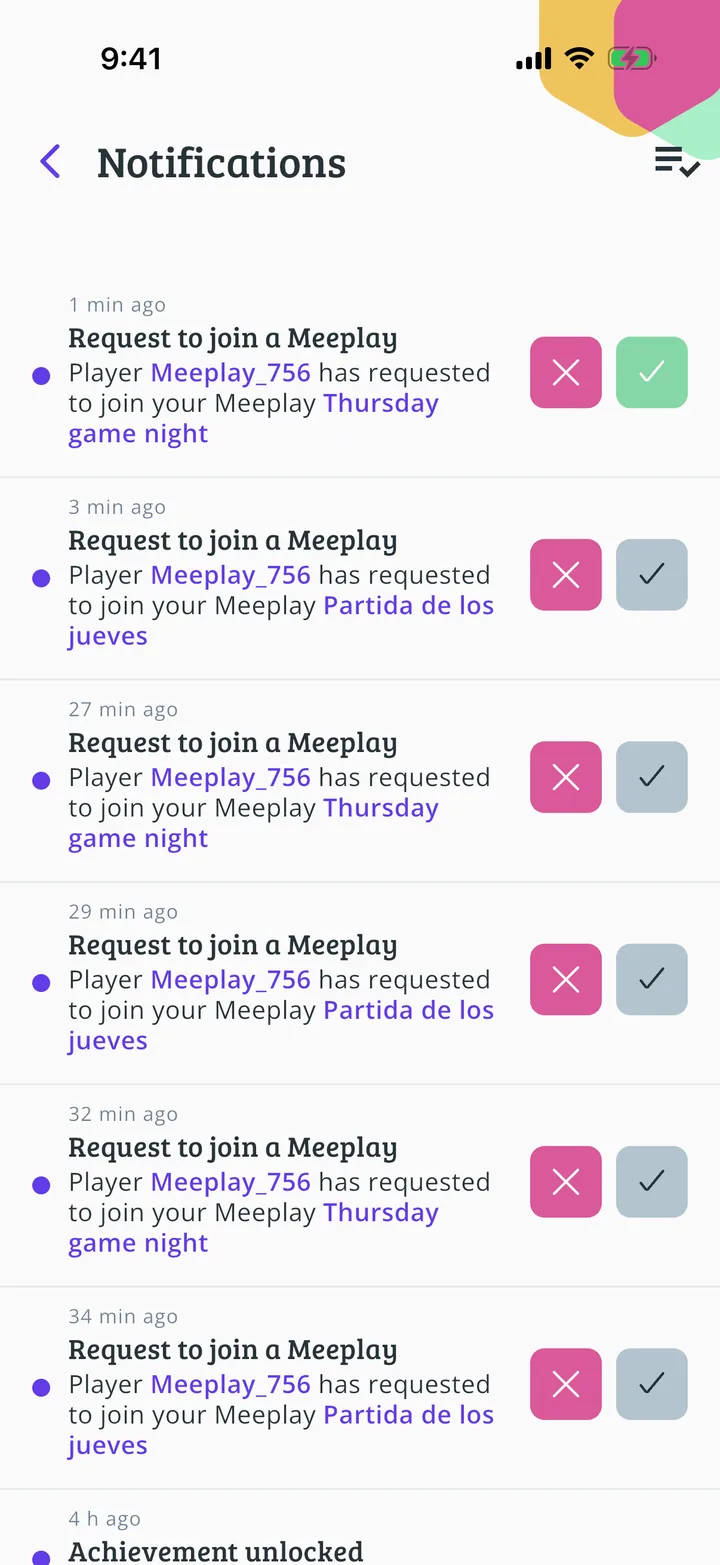
Check your notifications
Unread notifications have a dot. Tap one to open it; for requests, you can accept or reject right here.
Guide completed
All done!
You have finished the guide. If something did not go as in the screenshots, tell us which step you got stuck on and we will help you.
Next in «For players»How to accept a follow request you rejected →