How to stop push notifications
Turn off all the alerts from the Meeplay app or choose which ones you want, and stop promotional emails.
5 steps with screenshots of the app
You can turn off all notifications at once or keep only the ones you care about, by type. You do it from the notification settings.
- Have the Meeplay app installed and be logged in to your account.
In each screenshot, what you need to tap is outlined in yellow and pointed out with an arrow.
- Step 1 of 5
Open your profile
On the home screen, tap your name at the top left.
- Step 2 of 5
Go to "Settings"
Tap Settings.
- Step 3 of 5
Open "Notification settings"
Tap Notification settings.
- Step 4 of 5
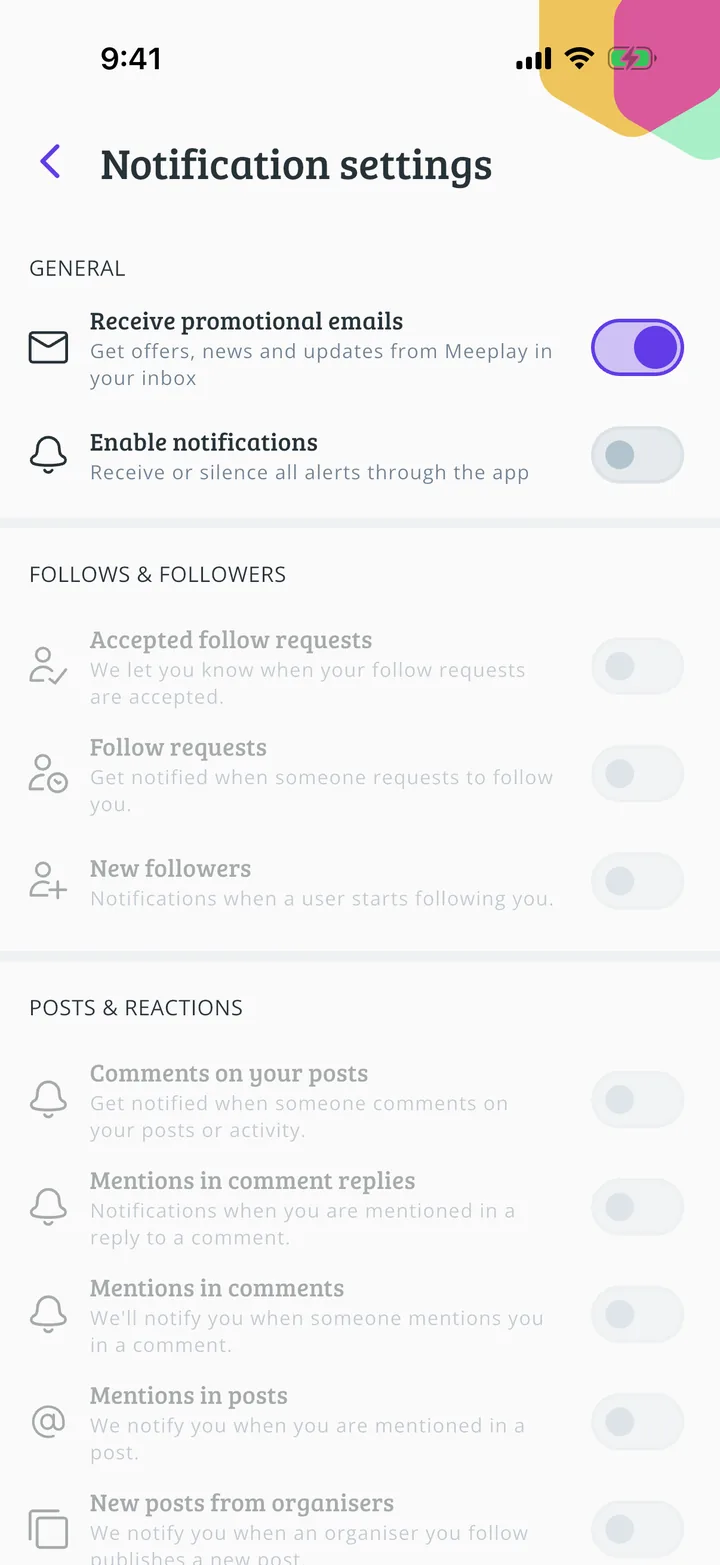
Turn off notifications
Tap the Enable notifications switch to turn them all off. If you only want to remove some, leave it on and turn off the ones you don't want in the list below. Receive promotional emails decides about emails.
- Step 5 of 5
Notifications off
You will no longer get alerts. To get them back, turn the switch on again.
All done!
You have finished the guide. If something did not go as in the screenshots, tell us which step you got stuck on and we will help you.
Next in «For players»How to mute a Meeplay's notifications →