Before you start
18 steps with screenshots of the app
In a Swiss tournament nobody is knocked out: everyone plays every round and, in each one, players with similar scores face each other. This guide runs a 7 Wonders Duel tournament for 8 people over 3 rounds, from start to finish.
- Have the Meeplay app installed and be logged in to your account.
- Manage an organization on Meeplay. If you don't have one yet, follow the How to create your organization guide first.
- It helps to have read the How to create a tournament guide first: this one only explains the steps that change in this format.
In each screenshot, what you need to tap is outlined in yellow and pointed out with an arrow.
Step 1 of 18
Start creating the tournament
On your organization's dashboard, tap Create Tournament and fill in the name, game, date and places as in the How to create a tournament guide. In this example, 7 Wonders Duel and 8 places. Then tap Type of competition.
Step 2 of 18
Choose Swiss and the rounds
Choose Swiss. In Number of rounds, set how many rounds will be played (with 8 players, 3 is usual) and in Players per match, how many play each game: 2 in 7 Wonders Duel.
Step 3 of 18
Choose the scoring
Choose Points per result: 3 points for a win, 1 for a draw and 0 for a loss. The other option, Points obtained, adds up the points each player scores in their games.
Step 4 of 18
Publish the tournament
Tap Publish, confirm it and tap Done, as in the How to create a tournament guide.
Step 5 of 18
Go to the players
The tournament page sums up the format under Details. To add the participants, tap the Players tab.
Step 6 of 18
Add players
Tap the + button at the bottom right.
Step 7 of 18
Choose the list
Tap Confirmed so they go straight in as confirmed. If the tournament is already full, you can add them to the Waitlist.
Step 8 of 18
Tick the participants
Tap each person to tick them. At the top you can search for anyone with a Meeplay account by name or nickname; if someone doesn't have one, add them with Create player. When everyone is ticked, tap Add 8/8 players.
Step 9 of 18
Go to the results
The players now show up as confirmed. Now tap the Results tab.
Step 10 of 18
Generate the first round
Tap Generate plays. In a Swiss tournament only the first round is created: each following round appears by itself when the previous one is over.
Step 11 of 18
Confirm
Tap Generate and then Done in the next message.
Step 12 of 18
Round 1
Each card is a game in the round, with its two players. Later you will use the Round 1 drop-down to move from one round to another.
Step 13 of 18
Enter each result
When a game finishes, tap the pencil on its card. Games that already have a result show the points and who won: in this example only one is left.
Step 14 of 18
Points and winner
Enter each player's Points, mark the Winner, tap Save and confirm.
Step 15 of 18
The standings after round 1
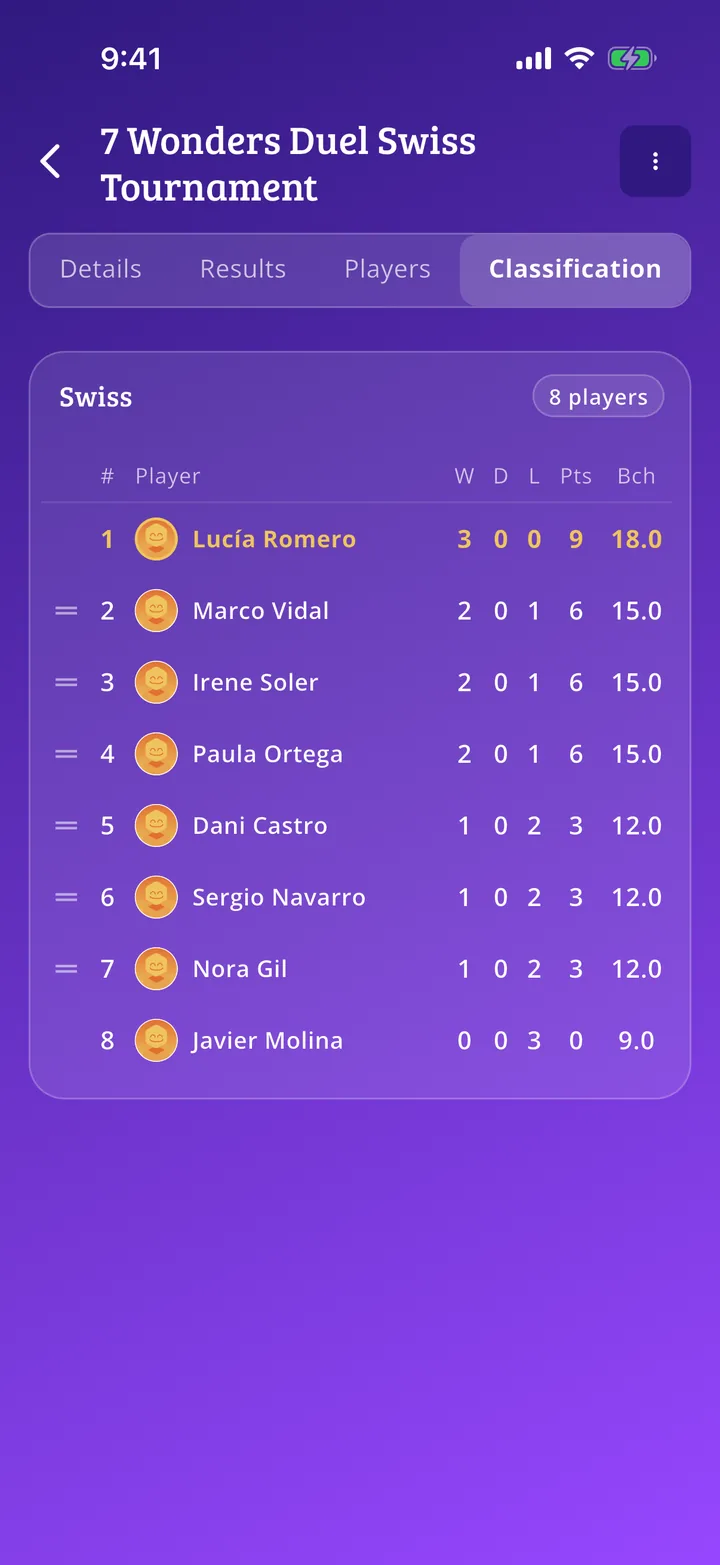
Under Classification you see the table with wins (W), draws (D), losses (L) and points (Pts). Buchholz (Bch) breaks ties: it adds up the points of the opponents each player has faced.
Step 16 of 18
Round 2 is generated automatically
When you save the last result of round 1, the app creates round 2 and pairs players who are level: those who won play each other, and so do those who lost. To see it, choose Round 2 in the drop-down.
Step 17 of 18
All the way to the last round
Do the same in every round: enter the results and the next one appears by itself, until you have played all the rounds you chose.
Step 18 of 18
The final standings
Once the last round is over, the standings are final: whoever is in first place has won the tournament.