How to sign in to Meeplay with an email code
Sign in to the app with your email and the 6-digit code you receive, no password needed.
4 steps with screenshots of the app
The app no longer asks for a password: to sign in you type your email and get a 6-digit code. If you forgot your password, you don't need it. You can also sign in with Google or Apple.
- Have the Meeplay app installed and an account. If you don't have one yet, see How to create your Meeplay account.
- Have your account's email at hand.
In each screenshot, what you need to tap is outlined in yellow and pointed out with an arrow.
- Step 1 of 4
Open the app
If you're not signed in, the app opens on the sign-in screen. Tap the Email field. If your account uses Google or Apple, sign in with Continue with Google or Continue with Apple.
- Step 2 of 4
Type your email
Type your account's email and tap Continue. Every time you sign in, the app sends you a new code.
- Step 3 of 4
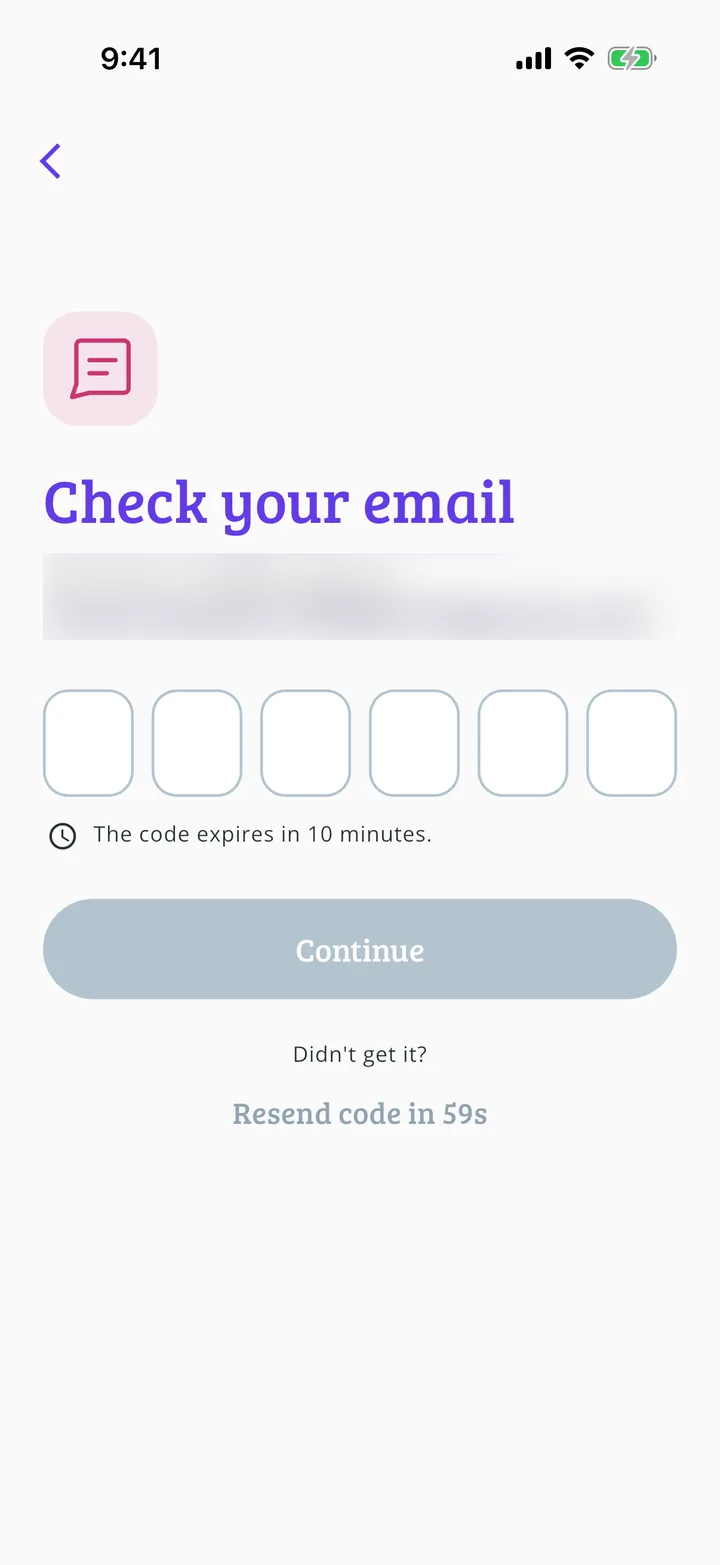
Type the code
You get an email with a 6-digit code that expires after 10 minutes. Type it and tap Continue. If it doesn't arrive, check your spam folder; after a minute you can ask for another with Resend code. If you typed the wrong email, go back with the arrow. If that email has no account, the app offers to create one: see How to create your Meeplay account.
- Step 4 of 4
You're in!
You're on Meeplay. The app remembers your session: you won't need another code until you sign out or sign in from another phone.
All done!
You have finished the guide. If something did not go as in the screenshots, tell us which step you got stuck on and we will help you.