How to rate and review a game
Give a game your score, from 1 to 10, and say what you thought of it to help other people get to know it.
7 steps with screenshots of the app
Every game on Meeplay has its own page, with the average score and the reviews of people who have played it. You can give your score too and say what you thought of it.
- Have the Meeplay app installed and be logged in to your account.
In each screenshot, what you need to tap is outlined in yellow and pointed out with an arrow.
- Step 1 of 7
Open search
On the home screen, tap the magnifying glass at the top.
- Step 2 of 7
Search for the game
Type the name, choose the Games tab and tap the game.
- Step 3 of 7
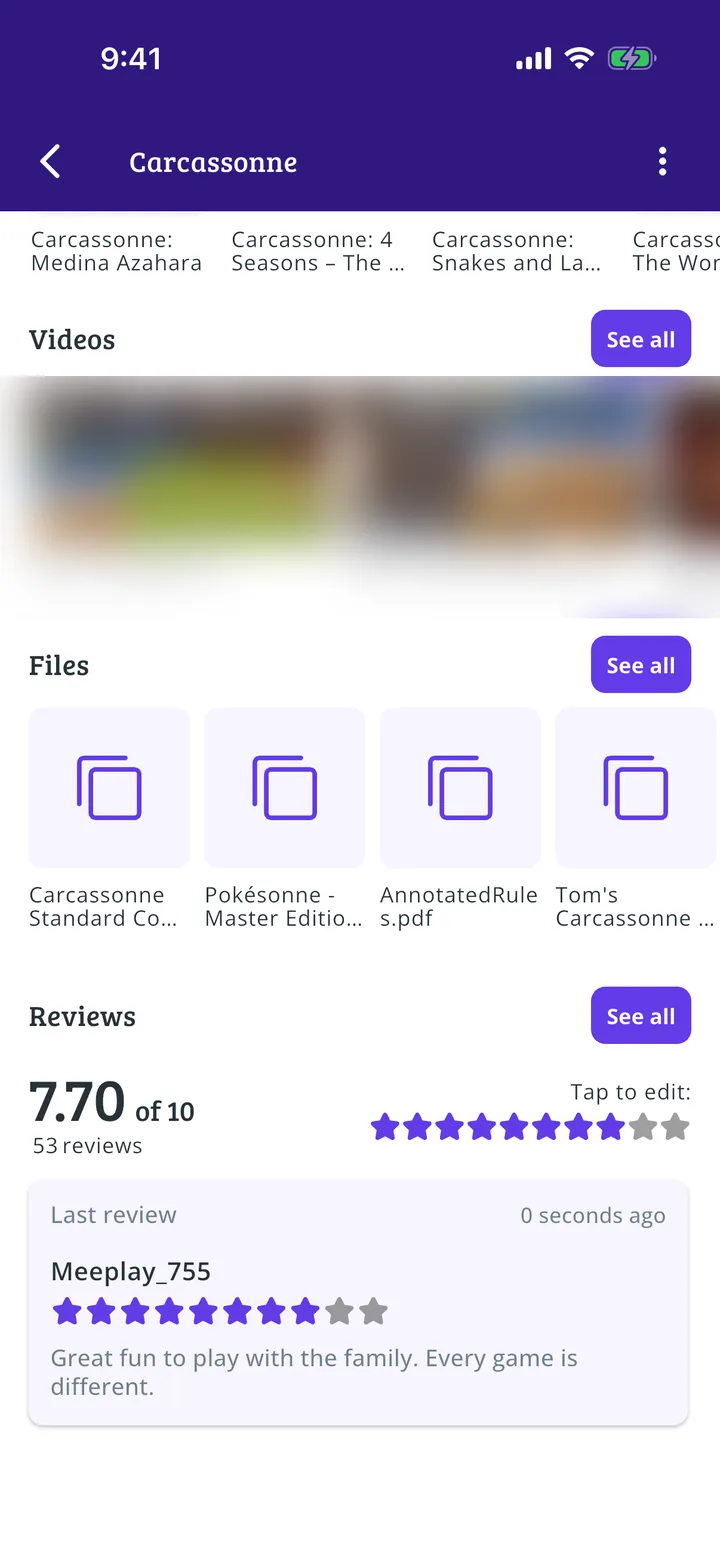
Scroll down to the reviews
Scroll to the end of the page. Under Reviews, tap the stars.
- Step 4 of 7
Give your score
Tap the star that matches your score: the first one is a 1 and the last one is a 10.
- Step 5 of 7
Say what you thought
Write your opinion in the box and tap Rate.
- Step 6 of 7
Rating submitted
Tap Done.
- Step 7 of 7
It is on the page
Your score and your review now appear on the game page. If you change your mind, tap the stars again to edit them.
All done!
You have finished the guide. If something did not go as in the screenshots, tell us which step you got stuck on and we will help you.
Next in «For players»Where to find your user activity →