How to add games to your collection
Mark the games you own in the app to keep your collection up to date, and add the ones you want to your wishlist.
5 steps with screenshots of the app
Your collection is the list of games you own. You fill it game by game from each game's page; if you already have it on BGG, you can bring it all over by syncing your account.
- Have the Meeplay app installed and be logged in to your account.
In each screenshot, what you need to tap is outlined in yellow and pointed out with an arrow.
- Step 1 of 5
Open search
On the home screen, tap the magnifying glass at the top.
- Step 2 of 5
Search for the game
Type the name, choose the Games tab and tap the game.
- Step 3 of 5
Tap "Add this game"
On the game's page, tap Add this game.
- Step 4 of 5
Mark it as yours
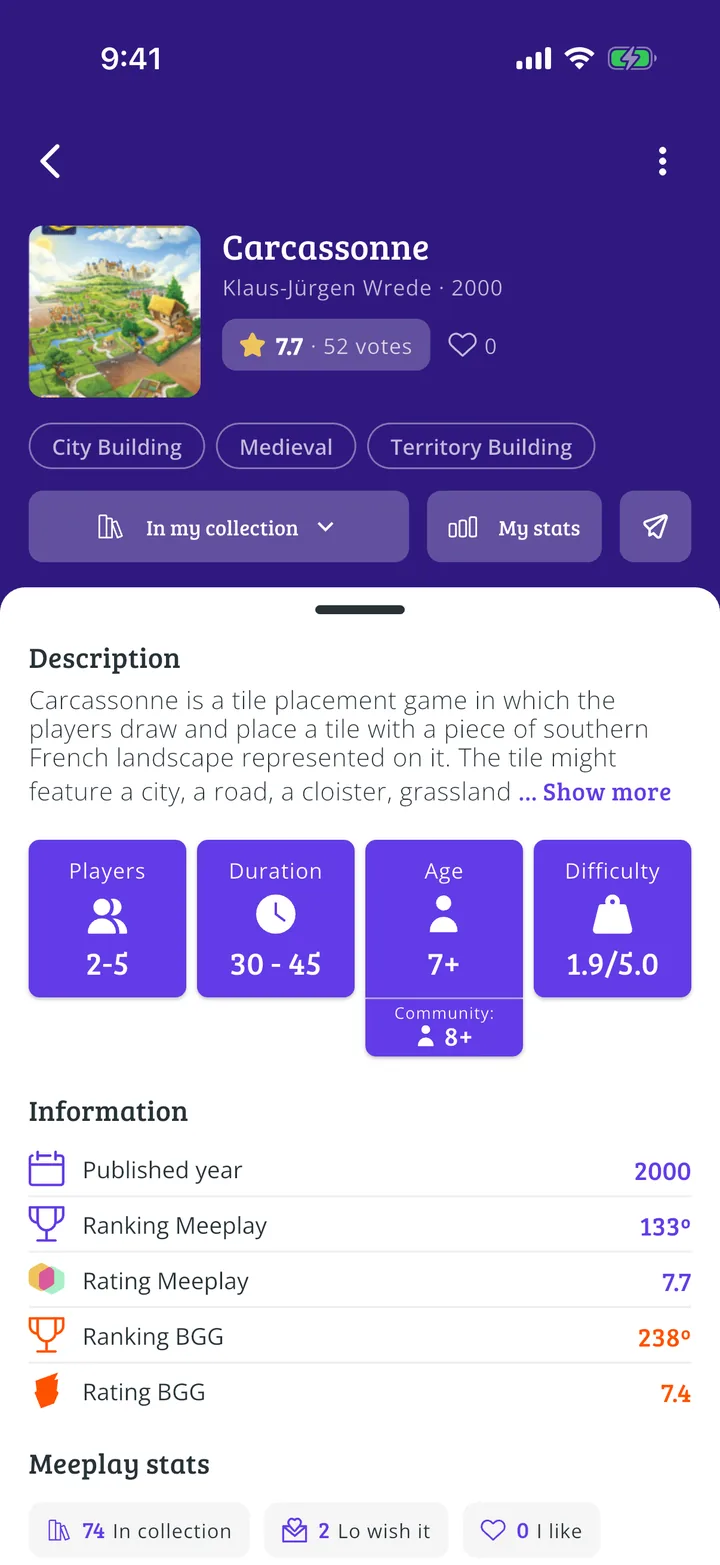
Tap In my collection if you own it. If you don't have it yet but would like it, choose I want it: it is saved to your wishlist and we will let you know if someone puts it up for sale.
- Step 5 of 5
It is in your collection
The button changes to In my collection: the game is now in your collection. Tap it again if you want to change or remove it.
All done!
You have finished the guide. If something did not go as in the screenshots, tell us which step you got stuck on and we will help you.
Next in «For players»Where to find your game collection →