Have an address on your profile: if you don't, the app asks for it when you start.
Have at least one photo of the game ready.
In each screenshot, what you need to tap is outlined in yellow and pointed out with an arrow.
Step 1 of 9
Open "Sell game"
Tap the + button in the middle of the bottom bar and then the Sell game icon.
Step 2 of 9
Choose the game
Under What game are you going to sell? you see the games in your collection. Tap the one you want to sell.
Step 3 of 9
Set the edition and condition
If you know it, choose the edition under Which edition is it?. Under What's the status?, tap the option that best describes the game and then Next step.
Step 4 of 9
Add photos
You need at least one photo. Tap Select images and choose whether to take it from your gallery or take it now.
Step 5 of 9
Select the photos
Tap the photos you want to use and then the confirm button at the bottom right.
Step 6 of 9
Continue
The photos appear on the ad; the X removes any you don't want. Tap Next step.
Step 7 of 9
Describe the game
Say what state it is in: whether it is complete, whether anything is missing, how much it has been played. Tap Next step.
Step 8 of 9
Set the price and publish
Choose Sell, Exchange or Both, type the price and decide whether it is Negotiable price. Tap Publish.
Step 9 of 9
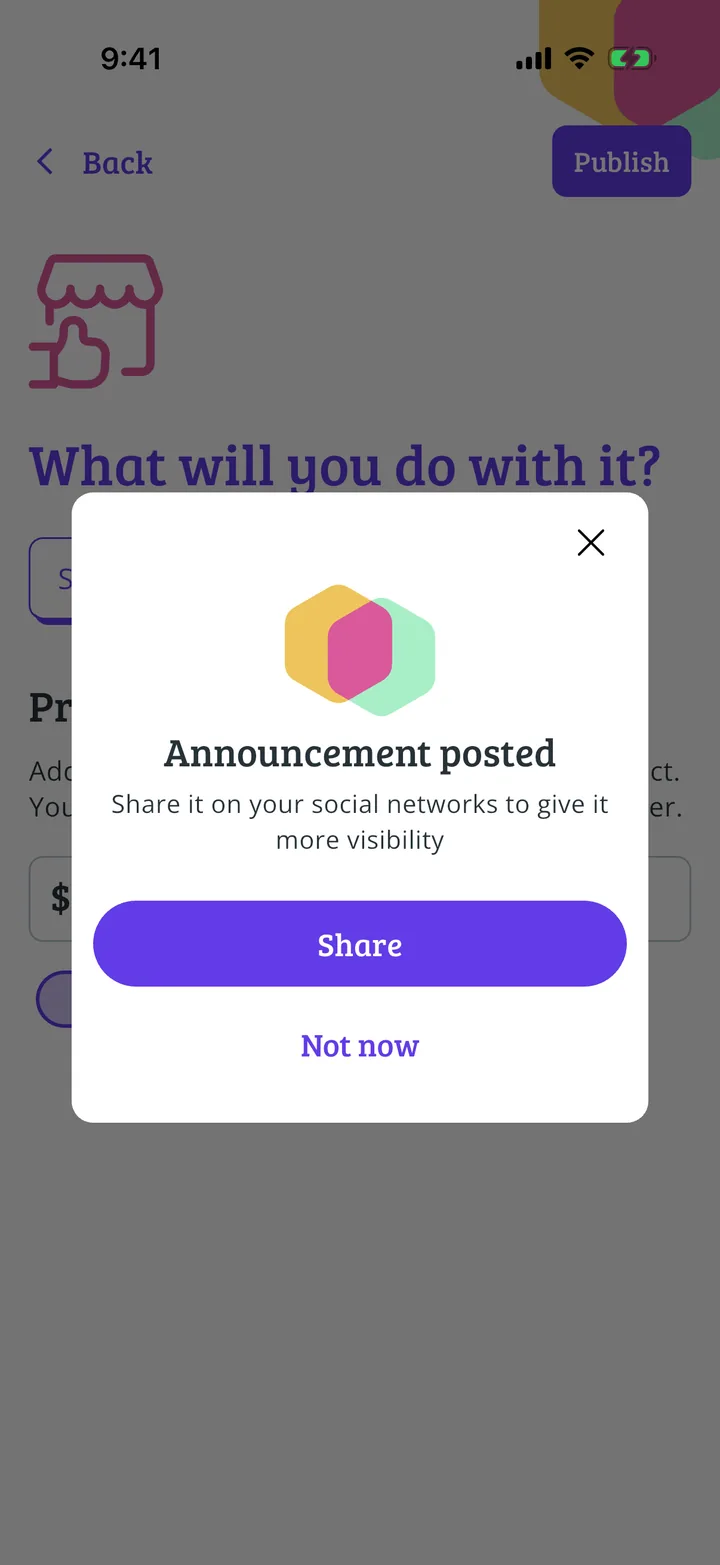
Ad published
It is now on the market. If you like, share it on social media so more people see it. You will find it under your games for sale.
Guide completed
All done!
You have finished the guide. If something did not go as in the screenshots, tell us which step you got stuck on and we will help you.